
Start with the surface your audience needs
A presentation about a website rarely needs the browser’s address bar. Open the required page before the call and use your meeting app’s native tab-sharing option, if it provides one. Google Meet, for example, offers a tab as a presentation source in its official sharing instructions.
Check the participant view after selecting it. A browser tab and a browser window are different capture boundaries: a window includes surrounding browser controls. The guide to sharing without showing other tabs explains that choice in more detail.
If the task requires demonstrating how to type a URL, change sites, or navigate between browser windows, prepare that browser environment first. Avoid opening privacy settings or browsing history while the audience is already watching; those preparation screens can expose the information you wanted to keep private.
Why the suggestions switch is not enough
Chrome’s combined address and search bar is often called the omnibox. Google explains that its suggestions can use both local browsing history and the default search provider. Those are different sources, so one provider setting is not a reliable hide-everything control.
The current documented path is More → Settings → You and Google → Google services → Improve search suggestions. You can turn that setting off to control whether typed text is sent to the default search engine for suggestions. Some Chrome versions use a Sync and Google services label.
Google explicitly says that local search and browsing-history suggestions may remain. Therefore, changing this switch is not sufficient evidence that an address bar is ready for a public demonstration.
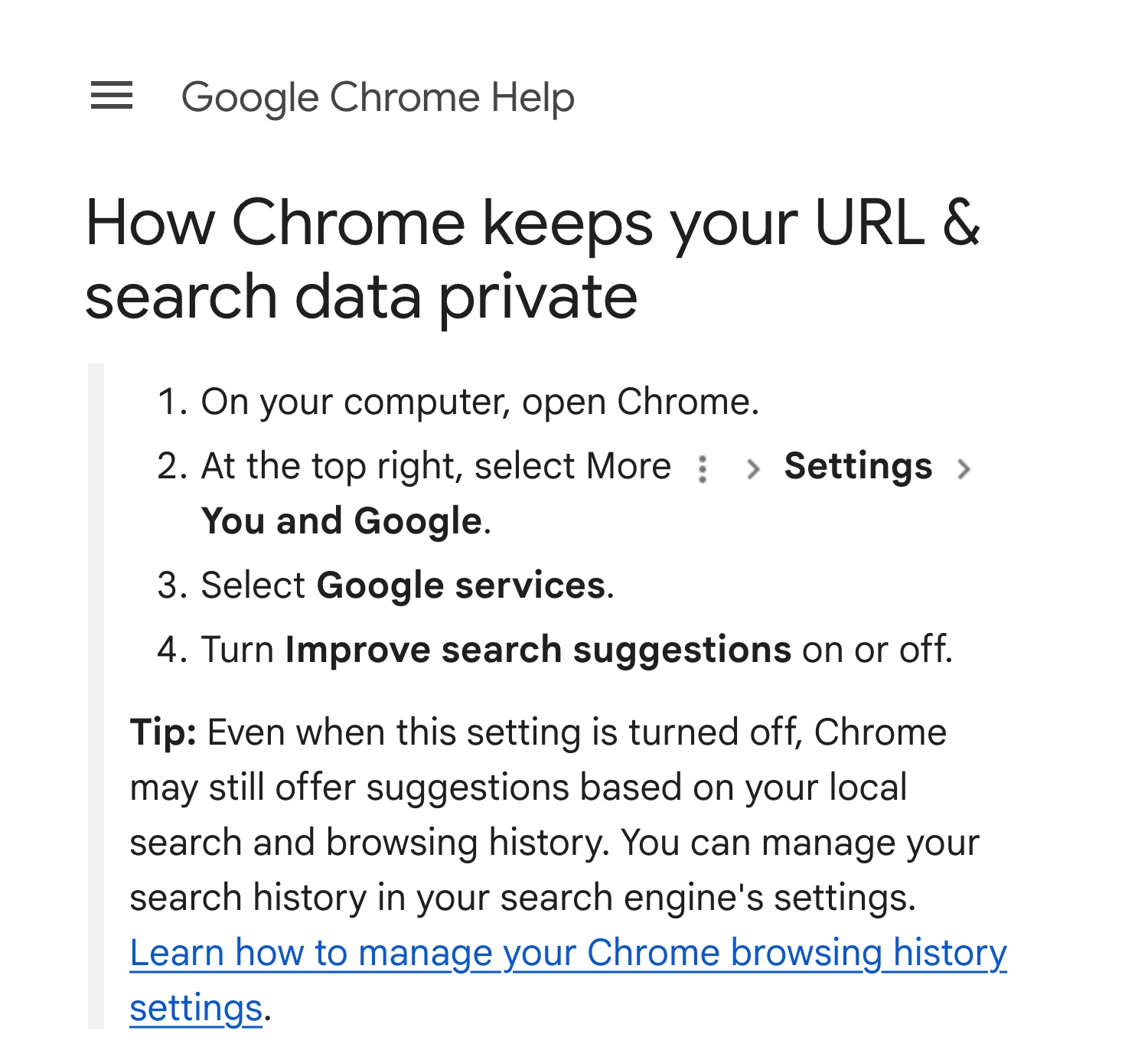
Google Chrome Help, captured September 25, 2026. Cropped header, article title, and settings excerpt preserve the source’s warning; account controls and unrelated sections are excluded.
A useful test is to click an empty address bar, then type the first few characters of the destination you plan to visit. Review the complete dropdown, not just the automatically completed text. Repeat this in the exact window you will share.
Use Guest for a short, self-contained walkthrough
For an occasional public-site demonstration, Chrome’s native Guest mode can be simpler than changing an everyday profile. Open the profile menu at the top right and choose Open Guest profile. Google’s Guest-mode guide explains that this context cannot access another Chrome profile’s information.
Prepare the required pages in that Guest window before presenting. Sign into a demo account only if the walkthrough needs one, and inspect its landing page. A fresh browser context does not turn real account contents into fictional data.
Guest also does not promise an empty suggestion list. Search-provider suggestions and activity within the current session still require review. Its value here is separating the demonstration from an everyday profile’s stored context, while keeping your existing history intact.
Use the meeting application’s native picker to share the prepared Guest window if the address bar must be visible. Do not assume that a similarly named regular window is the same target. Close the Guest session afterward when you have finished with its temporary browsing data.
Prepare a regular demo profile when you need extensions
Google’s private-browsing comparison lists extensions as unavailable in Guest mode. That matters if the demonstration depends on an extension, including ScreenK9’s Chrome Companion.
In that case, use a separate regular demo profile. Google documents how profiles separate browsing information. Keep this profile limited to presentation work instead of importing your everyday browsing setup. If you sign into an account, check what information it brings into the browser before sharing.
A saved demo profile is convenient across repeated calls, but it accumulates its own activity. Treat it as a maintained presentation workspace. Review recent destinations before each session, especially after using it for preparation or troubleshooting.
Do not make bulk deletion a prerequisite for a meeting. If you deliberately remove a history item, that is a data-management decision; it still does not prove that every other suggestion source is empty. The video above demonstrates individual removal, but the safer presentation decision is whether the audience needs to see the address bar at all.
Match the visible suggestion to its source
| What appears | What to rehearse |
|---|---|
| A previous search or visited address in the top bar | Empty-bar focus and partial typing in the prepared context |
| Provider-generated search predictions | The search settings and the resulting dropdown |
| A name or address inside a web form | The relevant form-autofill category |
| Recent customer records inside a website | The website’s demo account and sample data |
The last two rows are separate problems. Chrome’s address-bar setting cannot be assumed to control a website’s internal search results. For saved contact or payment fields, use the Chrome form-autofill preparation guide.
When the demo moves between work apps
ScreenK9 becomes useful when a presentation moves between a prepared browser, an editor, and other work apps while personal Chrome windows remain open. Configure the work applications and source display, then use Chrome Companion to classify the intended regular demo profile as Work and personal contexts as Personal.
Preview ScreenK9 — Audience View and share that named window in the meeting app. The Chrome profile privacy guide covers the classification workflow and its local, fail-closed matching. Guest mode is not a substitute for that extension-backed setup.
An address-bar dropdown inside an allowed Work window can still reach Audience View. ScreenK9 does not clean Chrome’s suggestion database or recognize sensitive search terms. For a known, stationary area, a manual redaction region may cover it in the audience output, but it will not follow a moving window or an expanding dropdown.
Ordinary application rules apply to the whole app, not arbitrary individual windows. ScreenK9 does not perform OCR or automatically detect secrets. Sharing the physical display directly bypasses the filtered audience window.
Finish with a navigation rehearsal
Run the actual sequence: open the first page, focus the address bar if needed, enter a partial destination, switch to the next page, and return to the starting point. Include any login or in-site search that will happen live.
Watch the recipient picture throughout. If personal information appears, stop sharing before investigating it. Resume only after the exact transition has been tested again in the prepared browsing context.
Sources checked
- Google Chrome Help: URL and search suggestions
- Google Chrome Help: Guest mode
- Chrome Enterprise Help: private-browsing modes and extensions
Documentation and ScreenK9’s current implementation were checked on September 25, 2026.