
Choose the version you want the audience to read
Open the actual document before joining the call. In Review, open Display for Review and select No Markup. Microsoft’s Word for Mac review instructions describe this as displaying the incorporated changes without deleting the underlying revisions.
The other choices serve different purposes:
| Display choice | What you are preparing to show |
|---|---|
| No Markup | The text with proposed changes incorporated |
| Simple Markup | A cleaner page with revision indicators |
| All Markup | The review view with visible changes |
| Original | The document before the tracked changes |
For a progress review, No Markup may show the intended proposal. For a discussion about the old wording, Original may be appropriate. Decide which version the meeting is about before hiding anything. A clean-looking page is not useful if it presents the wrong text.
Command–Shift–E toggles tracking on Mac. It is not a shortcut for erasing existing revisions or choosing a clean presentation view. Leave tracking enabled when your collaborators still need a record of subsequent edits.
Hiding revisions does not sanitize the document
Microsoft’s accept-or-reject guide warns that No Markup is temporary display behavior. Tracked changes remain in the file and can become visible when someone opens it again. Removing them requires an editorial decision to accept or reject them.
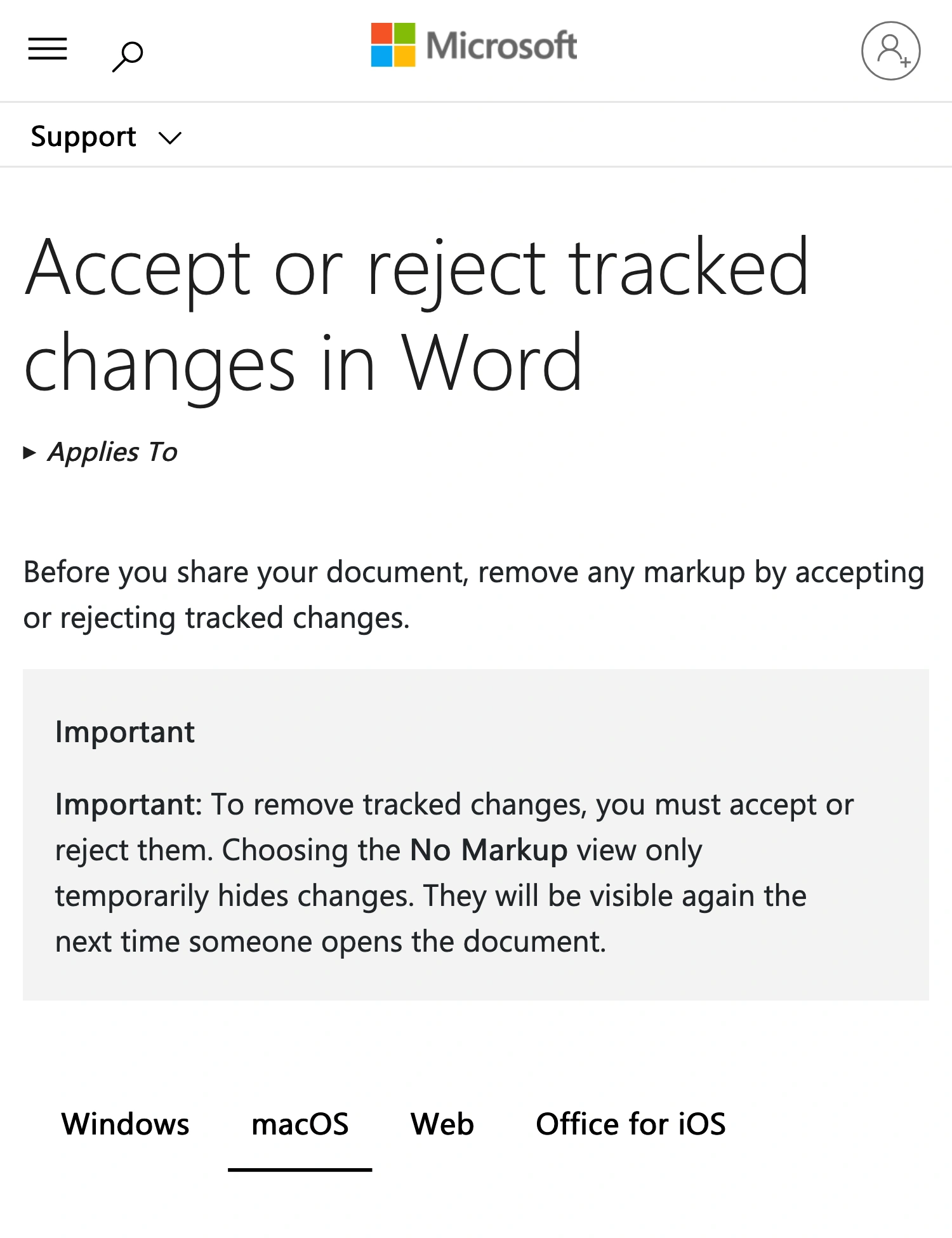
Microsoft Support, captured October 4, 2026: No Markup changes the display; it does not remove the stored revisions.
Treat these as two separate deliverables: the picture shown during the meeting and any file sent afterward. Preparing one does not prepare the other.
Avoid using Accept All Changes simply because the call starts in two minutes. That can approve wording that has not been agreed. If attendees need a final document, preserve the working draft and prepare a separate copy through your normal review process. Read the final copy, including headings, tables, footnotes, and filenames, before distributing it.
For a live demonstration of editing mechanics, use a disposable document with fictional names and amounts. It removes the need to make last-minute decisions about a real client’s revision history.
Inspect comments as a separate layer
Revisions and comments are different objects. A revision proposes a change; a comment is a conversation about the text. Check both the page margin and any open discussion or reviewing panel after choosing No Markup.
Microsoft’s modern-comments documentation distinguishes contextual comments from the list view. The list can include resolved discussions. Resolving a thread is therefore not the same as removing every way to see it.
For a presentation, close review panels you do not need and inspect the exact page at your chosen zoom level. Do not reopen Comments merely to check whether it is empty while participants are watching. Make that check before sharing.
If the review takes place in a browser-based document instead, the Google Docs comments guide covers its different controls. Word’s menu names should not be transferred to another editor.
Share the prepared Word window
A discussion that stays inside one document usually needs only a window share. In your meeting app, select the prepared Word window and read its preview carefully. Check the document title as well as the page content.
Rehearse the specific interaction the meeting requires:
- Start with the opening paragraph at a comfortable reading size.
- Scroll to the next section and to one table.
- Select a sentence if you expect to discuss its wording.
- Open only the controls you actually need.
- Return to the opening view and stop the share.
Use a participant view on another device or a trusted test call to judge the result. Your own document window shows what you are doing; the recipient’s view confirms what you sent.
If a question requires comparing a confidential draft, stop sharing before opening it. A second Word document can be easy to confuse with the first when both have similar titles. Give the presentation copy a clear, approved filename and keep the route through the material short.
When you need review notes visible only to you
No Markup is the simplest answer when everyone, including the presenter, should see the clean document. A different problem arises when you need a stationary review panel as a private prompt while the audience sees the approved page.
First consider moving your speaking prompts into a separate unshared notes app. That is easier to manage than a margin that moves as you scroll.
ScreenK9 provides an alternative for a predictable layout: a manually placed audience-only redaction region. It creates a separate filtered window named ScreenK9 — Audience View.
- Place Word on the captured display in its final size and position.
- Ensure every private item is inside the panel you intend to cover.
- Add a redaction region over that complete area.
- Inspect Audience View while performing the rehearsal.
- Share ScreenK9 — Audience View, then verify the recipient’s picture.
This is appropriate only when the private material stays inside that fixed rectangle. Inline insertions, deletions, popups, and comments elsewhere on the page are not automatically covered. A mask does not follow a review object, read the document, or detect secrets. Moving Word, resizing a sidebar, or changing display scale requires another check. See the manual-region guide before relying on that arrangement.
For a walkthrough that alternates between Word and other work apps, ScreenK9 can also provide a reusable app selection in one audience window. The multi-app sharing guide explains the setup. Ordinary app rules include or exclude the application’s windows together; they do not isolate one safe Word document from another private Word window.
ScreenK9 does not alter the Word file, accept revisions, remove comments, or clean document metadata. Sharing the physical display directly bypasses its filtered output.
Finish with a two-part handoff check
Before starting, confirm that the visible page is the intended version and that the recipient sees the intended window. Before sending a file afterward, review that file separately.
If the only goal is to present clean text, use No Markup and a prepared window. Add an audience-only mask only when you have a specific local-view need and a layout you can keep predictable.
Sources checked
- Microsoft: Track and review changes, including the macOS instructions
- Microsoft: Accept or reject tracked changes
- Microsoft: Using modern comments
Documentation and ScreenK9’s implementation were checked October 4, 2026. The rehearsal is a procedure for your setup, not a claim that a live Word meeting was tested here.