
Choose the sharing source before arranging groups
For a document-only presentation, use your meeting app’s window picker to select that document. A tidy Stage Manager group is useful preparation, but the group itself is not evidence that only its members will reach the call.
In Zoom, open Share → Screens and select the required application window. For a known set of applications, hold Shift on Mac while selecting more than one. Zoom documents these native options in its screen-sharing guide; availability can depend on administrator settings.
Read the preview before starting. If a window is missing, bring it into the active working area and reopen the picker. Check the source again after changing your arrangement. Avoid switching to an entire-display share merely to make a missing window appear: that is a broader source and needs a separate privacy check.
The practical question is concrete: “What did I select in the meeting app?” Answers such as “my current stage” or “the group on the right” describe your workspace, not necessarily the capture choice.
Hide the recent-app strip when it is distracting
Apple’s Stage Manager guide places its controls in System Settings → Desktop & Dock → Desktop & Stage Manager. You can also turn Stage Manager on or off through Control Center.
Turning off Show recent apps in Stage Manager removes the persistent strip. Moving the pointer to the left edge can reveal those apps again. Apple also describes grouping windows by dragging a recent app into the center.
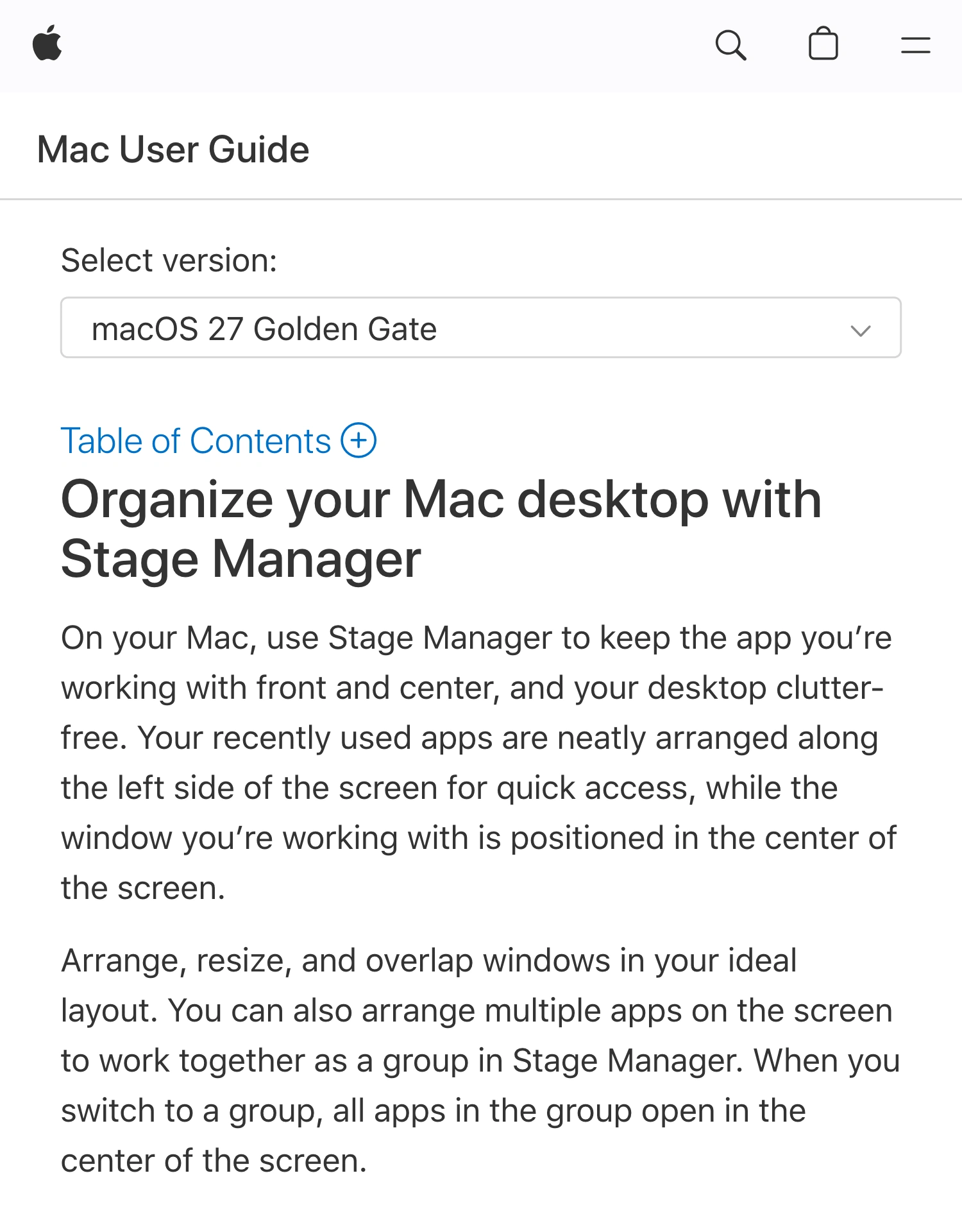
Apple’s Mac User Guide, captured October 4, 2026, describes local window groups and the recent-app strip. Select the meeting’s capture source separately.
Use the strip setting for concentration and a calmer workspace. Do not use its hidden appearance as your only privacy check. A pointer movement is easy to make while pointing at a chart near the left edge.
If Stage Manager makes the presentation unpredictable, turn it off before the call and use ordinary window sharing. You can restore your preferred workspace afterward. There is no need to preserve a particular desktop arrangement at the cost of an uncertain audience picture.
Separate window organization from audience selection
| Decision | What it controls | What to verify |
|---|---|---|
| Arrange a Stage Manager group | Your working layout | Which window becomes active |
| Hide recent apps | The persistent local strip | What happens at the left edge |
| Select a meeting source | The content sent to the call | The recipient’s actual picture |
| Configure an audience window | A separately filtered output | That this window is the shared source |
This distinction matters during transitions. Your opening frame may be a clean slide, but the next action could be a group switch, a desktop click, or a new document. Judge the sequence, not just the first frame.
Apple documents that desktop items can be hidden and revealed through desktop interaction. Keep that behavior in your rehearsal if you intend to open files during the talk. A file you do not plan to show should not become part of an improvised demonstration.
For Mission Control desktops, use the separate Mac Spaces sharing guide. This article concerns Stage Manager’s active groups and recent-app strip, rather than organizing windows across additional desktops.
Run a four-transition rehearsal
Use harmless sample content and a receiving device or a trusted participant. Label an unrelated sample window “private rehearsal” so you can recognize an unintended appearance without exposing real information.
Start sharing the source you intend to use, then test:
- Reveal the strip. Move the pointer to the left edge and return it to the document.
- Change groups. Switch to the next group in the exact way you normally work.
- Return through another route. Use the Dock or app switcher to return to the presentation.
- Open the next item. Open a second approved document or click the desktop if the real demonstration requires it.
For each action, note whether the recipient sees the intended content, an unrelated item, a frozen frame, or a blank picture. A blank result can be private and still make the presentation unusable.
Repeat the check after changing the selected source or display arrangement. If the result is unclear, simplify: keep the necessary window active, turn Stage Manager off, or reduce the number of transitions. Do not use an old forum workaround as proof of current capture behavior on your Mac.
This is a rehearsal procedure, not a report that every combination of Stage Manager, macOS, and meeting software has been tested. The participant view is the evidence for your specific session.
Use ScreenK9 for an approved set of apps
ScreenK9 is useful when the demonstration moves between several work applications while unrelated apps remain open locally. It creates a separate filtered window called ScreenK9 — Audience View.
Choose your source display, select Show only selected, and include the work apps needed for the demonstration. Inspect Audience View, then select that named window in the meeting’s share picker. Continue working in the original apps.
The multi-app presentation guide covers this workflow. The app selection is independent of how you arrange Stage Manager groups: moving a window into an approved-looking group does not approve it in ScreenK9.
Keep the limits explicit:
- Ordinary app rules apply to the application’s windows together. They do not distinguish a safe document from a private document in the same ordinary app.
- There is no Stage Manager group filter. Do not assume a group name or thumbnail determines permission.
- ScreenK9 does not promise that every Stage Manager transition or thumbnail is hidden. Inspect the output; disable Stage Manager when its surfaces create uncertainty.
- Manual redaction regions stay at configured display coordinates. They do not follow moving windows or detect sensitive text.
- Sharing the physical display directly bypasses Audience View.
The Dock and menu-bar guide explains the separate system-surface controls. Those controls should not be presented as a blanket Stage Manager privacy guarantee.
Keep one recovery action ready
Before the meeting, identify how you will stop sharing without searching through private windows. If the next group or document produces an unexpected picture, stop the share and restore the prepared layout.
Resume only after confirming the source and recipient view again. Stage Manager can remain part of your personal workflow; the sharing decision should stay explicit and easy to verify.
Sources checked
- Apple: Organize your Mac desktop with Stage Manager
- Zoom: Share screens and application windows
- MacMost: Stage Manager walkthrough, May 2026
Documentation and ScreenK9’s current implementation were checked October 4, 2026.