
Hide comments without changing the discussion
Open the document before you start the meeting share. Select View → Comments → Hide comments, then inspect the page at the zoom level you will use. Google’s current comments guide documents this control. You do not need to resolve the conversation just to obtain a cleaner presentation.
The same menu offers Minimize comments. That reduces comments to icons which can reveal previews when you hover. For a presentation where the review discussion should stay off-screen, choose Hide instead. Closing only the side panel is also a different action from hiding all comment threads.
Google introduced these controls in its February 2024 comments update. Older answers recommending that you resolve every thread can therefore be misleading. Use the current menu rather than changing your team’s review status to tidy the screen.
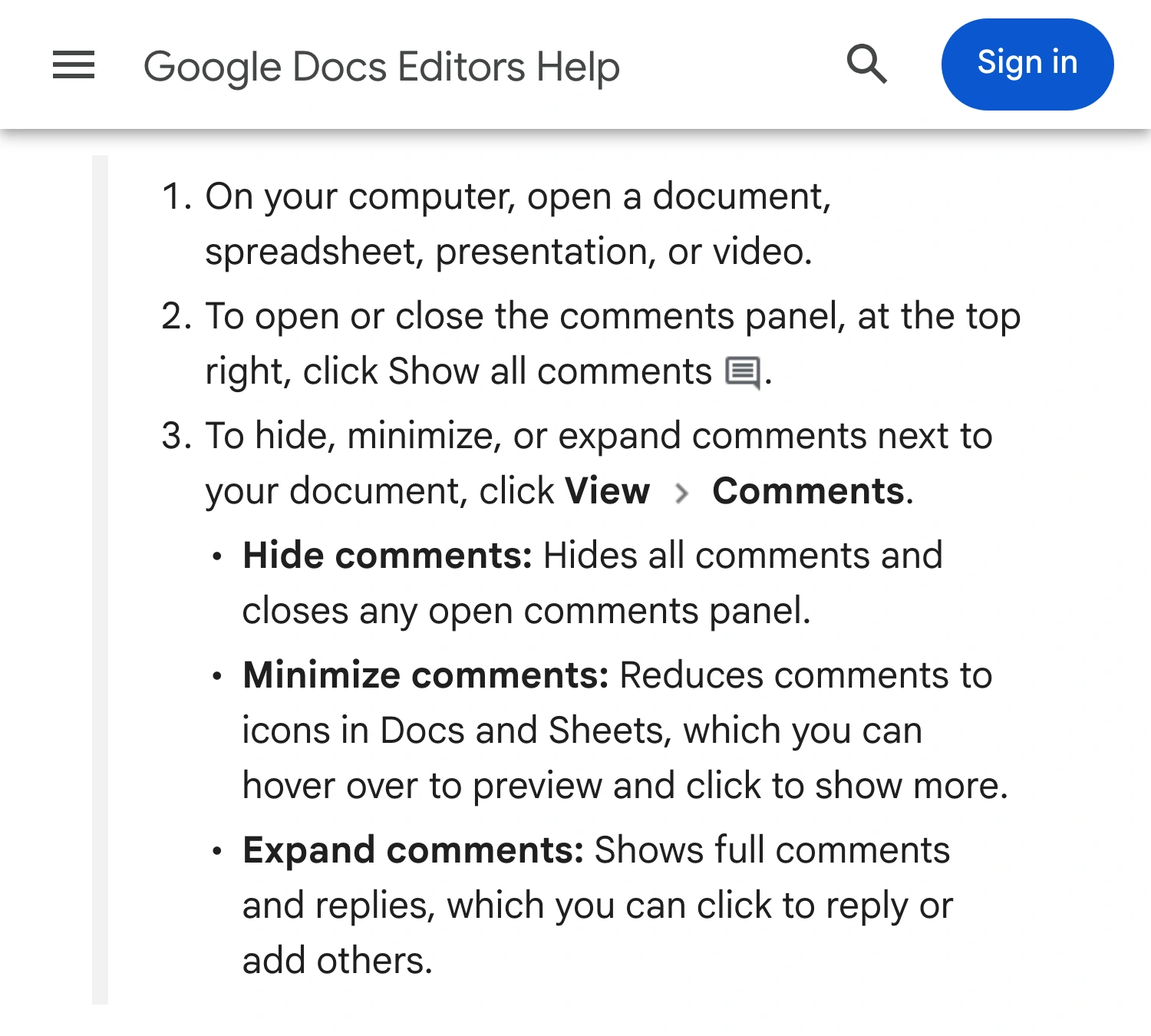
Google Docs Editors Help, captured October 1, 2026 at 3× device pixel ratio. The source identifies the native controls; this is a documentation screenshot, not a live meeting test.
Once the comments are hidden, read the remaining document as your audience would. Check the title, headings, visible text, selected text, and any open side panel. A clean margin does not mean the body of the document is ready for an external audience.
Check suggestions as a separate review step
A comment discusses the document. A suggestion proposes a change to its content. Do not assume that hiding comment cards produces the exact version you want to present.
Google’s suggested-edits guide explains that proposed additions use a different color and proposed deletions are crossed out. It also documents Tools → Review suggested edits, where you can preview the document with or without proposed changes.
Use the preview to decide what the audience should see. Avoid accepting or rejecting everyone’s changes solely to prepare for a call: those actions belong to the actual editorial decision. When a live working draft is too complicated to present safely, create a separate presentation document containing only approved text.
That preparation is a manual review, not an automatic cleanup guarantee. Read the resulting copy from start to finish. A pasted paragraph may still contain a client name, an internal note, or an unfinished number. Use fictional content when demonstrating a process rather than discussing a real document.
Choose the right action for the job
| What you need | Starting point | What still needs checking |
|---|---|---|
| Hide review discussions locally | View → Comments → Hide comments | Body text and suggested edits |
| Keep small comment indicators | Minimize comments | Hover previews can reveal a thread |
| Show one prepared document | Share its tab or window | Everything inside that source |
| Read comments privately while presenting | A fixed audience-only region | Position, scrolling, and popups |
| Send a document after the call | Review a separate deliverable | File contents and access permissions |
The fourth row is a more demanding job than simply hiding the interface. If you need the comments as private prompts, the native Hide command removes them from your own view too. Consider moving your speaking prompts into a separate unshared notes window first. That is often easier to rehearse than reading a changing review margin.
For a longer talk, the private speaker-notes checklist helps you separate what you read from what participants receive.
Share the prepared tab before sharing more of the desktop
For a document-only discussion, select the document tab if your meeting app supports tab sharing. Otherwise, choose its prepared browser window. The tab-sharing guide explains the difference between page content and browser chrome.
Move the pointer, scroll several pages, and open only the controls needed for the talk. Check the recipient’s view with a trusted colleague or another device. In particular, rehearse the moment you switch from reading to editing: selecting text and opening review controls changes the picture.
If the browser window contains other tabs, do not treat a window share as permission to navigate freely. Keep the presentation route short. When an unexpected question requires private research, stop the share before opening another document or returning to the file list.
Sharing pixels and granting file access are separate decisions. Hiding comments in your own view does not remove them from the document or establish who may access the file. Review Google’s file-sharing permissions before sending a link afterward.
Use ScreenK9 when the presenter needs a different view
ScreenK9 can help when you need review notes visible locally, or when the walkthrough moves between the document and other approved work apps. It creates a separate filtered window called ScreenK9 — Audience View.
For a comment column that stays in a predictable place:
- Put the document window in its final position on the captured display.
- Open the comments you need locally.
- Place a manual redaction region over the complete comment area in ScreenK9.
- Inspect Audience View while scrolling and changing the selected comment.
- Share ScreenK9 — Audience View as the meeting’s window source.
- Check the picture received by another participant before presenting.
This is a fixed region in display coordinates. It does not follow a comment, recognize an author, or detect sensitive text. A popup outside the region remains a separate risk. Moving the browser, resizing its panels, or changing display scale requires another check. The manual-region guide explains those limits.
App rules apply to all windows of an ordinary application. They do not choose one safe browser window while excluding another ordinary window from the same app. For Chrome, Companion provides a separate Work/Personal classification workflow; see the Chrome profile guide.
ScreenK9 does not edit Google Docs, change file permissions, or scan documents with OCR. Its filtered output reaches the meeting only when you share Audience View. Sharing the physical display directly bypasses that output.
Rehearse the question you are likely to get
Prepare a harmless comment such as “rehearsal note” in a disposable document. Run the actual presentation path: read, scroll, select a paragraph, visit the next page, and return to the opening view.
If you use a mask, confirm that the marker never reaches the audience while you can still read it locally. If it appears during a transition, simplify the document or move the prompts into a separate unshared app. End the share before reopening the review discussion.
Sources checked
- Google: Comments, action items, and emoji reactions
- Google Workspace: Updated comments controls
- Google: Suggest edits in Docs
- Google: Share files from Drive
Documentation and ScreenK9’s implementation were checked October 1, 2026. The rehearsal above is a procedure for your setup, not a claim that a live Docs meeting was tested here.