
Skip the slides before starting the call
Open the presentation and select the unwanted slide in the slide navigator. Choose Slide > Skip Slide, or Control-click the slide and choose Skip Slide. You can select multiple slides before applying the command. To restore them, select the skipped slides and choose Slide > Unskip Slide.
Apple’s current Skip or unskip guide, checked October 22, 2026, describes skipped slides as editable material. When shown in the navigator they appear as horizontal bars; in light table view they appear as dimmed thumbnails. Skipping the first slide of a collapsed group skips that group during playback, so expand a group first if you only intend to omit one slide.
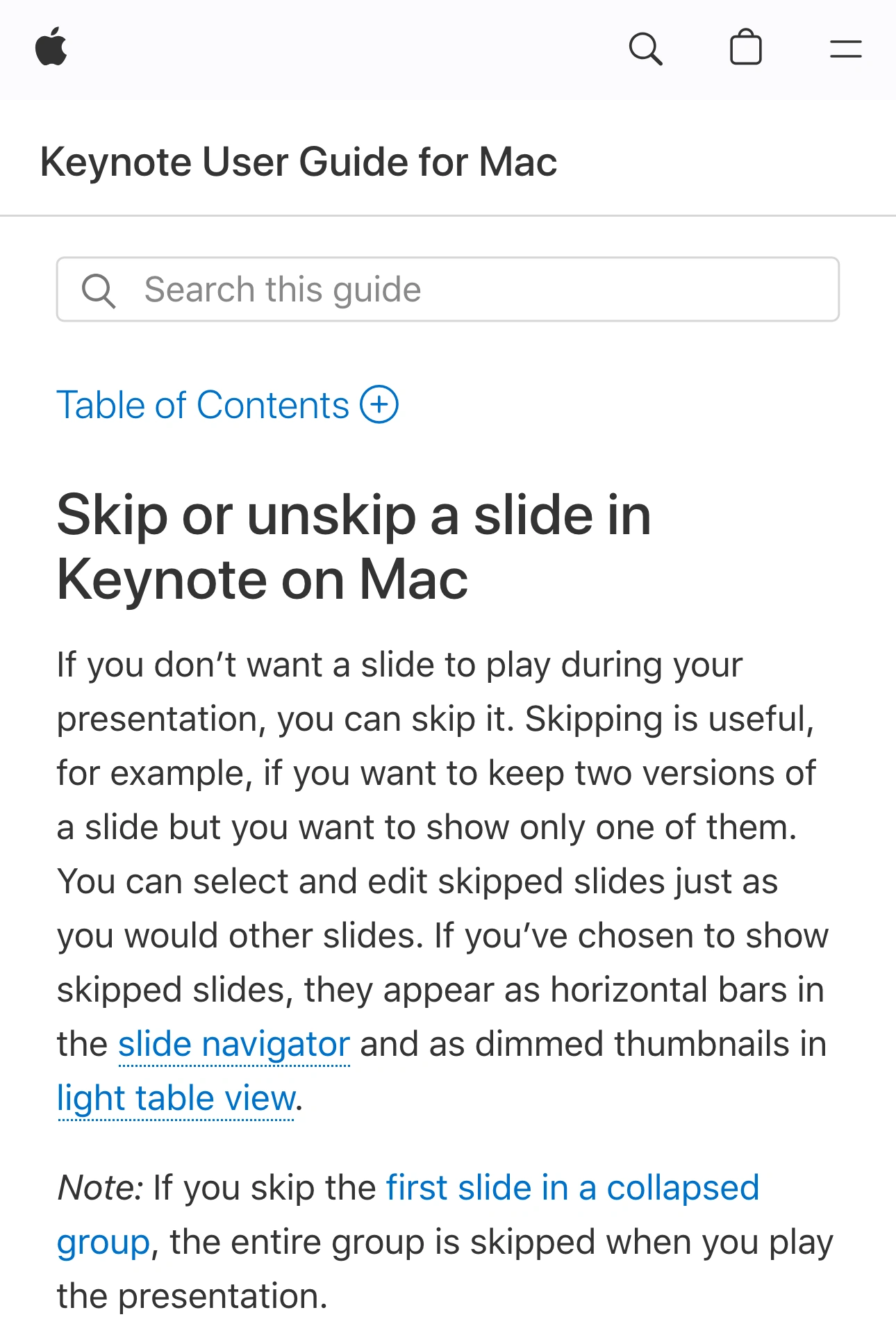
Apple Support, captured October 22, 2026 at 3× resolution. This unaltered page excerpt explains playback, editing, and grouped slides.
Make these choices before sharing. For a shorter customer walkthrough, you might omit an optional implementation section while preserving it in your working deck. If that section contains material the audience must never receive, prepare a separate audience copy rather than relying on the skip flag.
Start playback and advance through the intended route once. Check the transition into and out of every skipped section. A deck that looks right in the editor can still have the wrong pacing or an unexpected gap when presented.
Share the slideshow window, then check the received picture
For a remote call, use Play > In Window. Apple’s presentation guide explains that the slideshow and presenter display are separate windows. Choose the slideshow window in the meeting’s share picker and inspect the preview before starting.
The presenter display is where you navigate and work with notes. It is a different surface from the slide your audience should see. If private cues are the main concern, use the dedicated speaker-notes sharing guide.
Avoid identifying a share target only by its thumbnail: two Keynote windows can look similar. Compare the opening slide with the meeting preview, then confirm the received picture on a second device or with a colleague. Test a slide advance and the end of playback. Stop sharing before returning to the working deck for unplanned edits.
Separate playback, editing, and the handout
The same presentation can reach an audience in several forms. Each needs its own review.
| What you share | What Skip Slide helps with | What still needs checking |
|---|---|---|
| Live slideshow window | Omit slides from the planned playback | Navigation and the source selected in the meeting |
| Keynote editor window | Keep the working deck organized | Editable slides and other visible working material |
| Editable presentation file | Preserve optional sections for later | Everything the recipient can open or edit |
| Exported PDF | Produce a static audience copy | Export options and every resulting page |
Imagine a product pitch with a public overview, an internal costing slide, and an optional technical appendix. The appendix may simply be unnecessary for this audience. The costing slide has a different problem: it should not be delivered at all. Treat those two decisions separately even if both slides happen to be skipped in your working deck.
A useful rehearsal uses harmless placeholder content in the optional section. Follow the planned route and inspect what the audience receives. Do not test whether private material is exposed by putting real private material into a live meeting.
Review PDF options instead of assuming the skip flag is enough
Apple’s guide to sending a Keynote presentation describes PDF settings for skipped slides, presenter notes, and comments. Choose the options that match the handout you intend to give, then open the exported file.
Check the opening page, the boundaries around omitted sections, and the final page. Look for notes, comments, labels, and intermediate build stages that do not belong in the handout. Review at a readable zoom level; a quick thumbnail scan can miss a small annotation.
Name the approved export clearly and keep it separate from the editable original. When sending a follow-up, attach the reviewed file rather than selecting the first similarly named item in a recent-files list. If a PDF needs permanent content removal, follow the Mac PDF redaction guide and verify the saved result.
Do not describe the deck as sanitized merely because the live talk went well. A meeting picture and an attachment are different outputs, with different opportunities for exposing working material.
Use an app allowlist when the talk moves into a live demo
Native slideshow-window sharing is the simplest choice for a presentation that stays in Keynote. For a single brief detour, stop sharing, choose the prepared demo window, and resume. Rehearse that switch so you know what attendees see between sources.
ScreenK9 helps when you move repeatedly between approved work apps while unrelated apps remain open locally. Choose Show only selected, allow the apps needed for the demonstration, and inspect ScreenK9 — Audience View through the entire route. Share that named window in your meeting. The multi-app sharing guide explains the setup.
Ordinary ScreenK9 app rules apply to the whole app. Allowing Keynote does not select just the slideshow window or distinguish approved slides from private ones. Prepare the deck, close unrelated Keynote documents, and keep private presenter material outside the captured display arrangement. If you need a separate private Keynote window on that same display, native sharing of the slideshow window is the clearer starting point.
ScreenK9 does not change the deck, its export settings, or recipient permissions. It has no OCR or automatic secret detection. Manual regions are fixed and do not follow slide content as it changes. Sharing the physical display directly bypasses Audience View.
Before starting, confirm the slide route, the received meeting picture, and the file you plan to send afterward. End the share before restoring skipped working slides or searching the deck for an unexpected question.