
Hide the frame before you start presenting
Prepare the board before opening the meeting’s share. In Miro, select the frame you want to withhold and click its eye icon. You can also open the Frames panel, use the frame’s three-dot menu, and choose Hide.
The current Frames documentation lists hiding and revealing for board owners and co-owners on Education, Starter, Business, and Enterprise plans. Those requirements are narrower than the requirements for creating frames or starting a presentation. If the control is missing, check the board role and plan before looking for a different toolbar.
A hidden frame displays a placeholder rather than its contents. Miro explicitly says that hiding does not conceal the frame’s comments or title. Review those separately. A heading such as an internal client name can reveal useful information even when the body beneath it is covered.
Do not rename or remove material from a shared working board casually. If the real board mixes several clients or projects, preparing a separate board containing only approved material may be easier to review than relying on a long list of hidden areas.
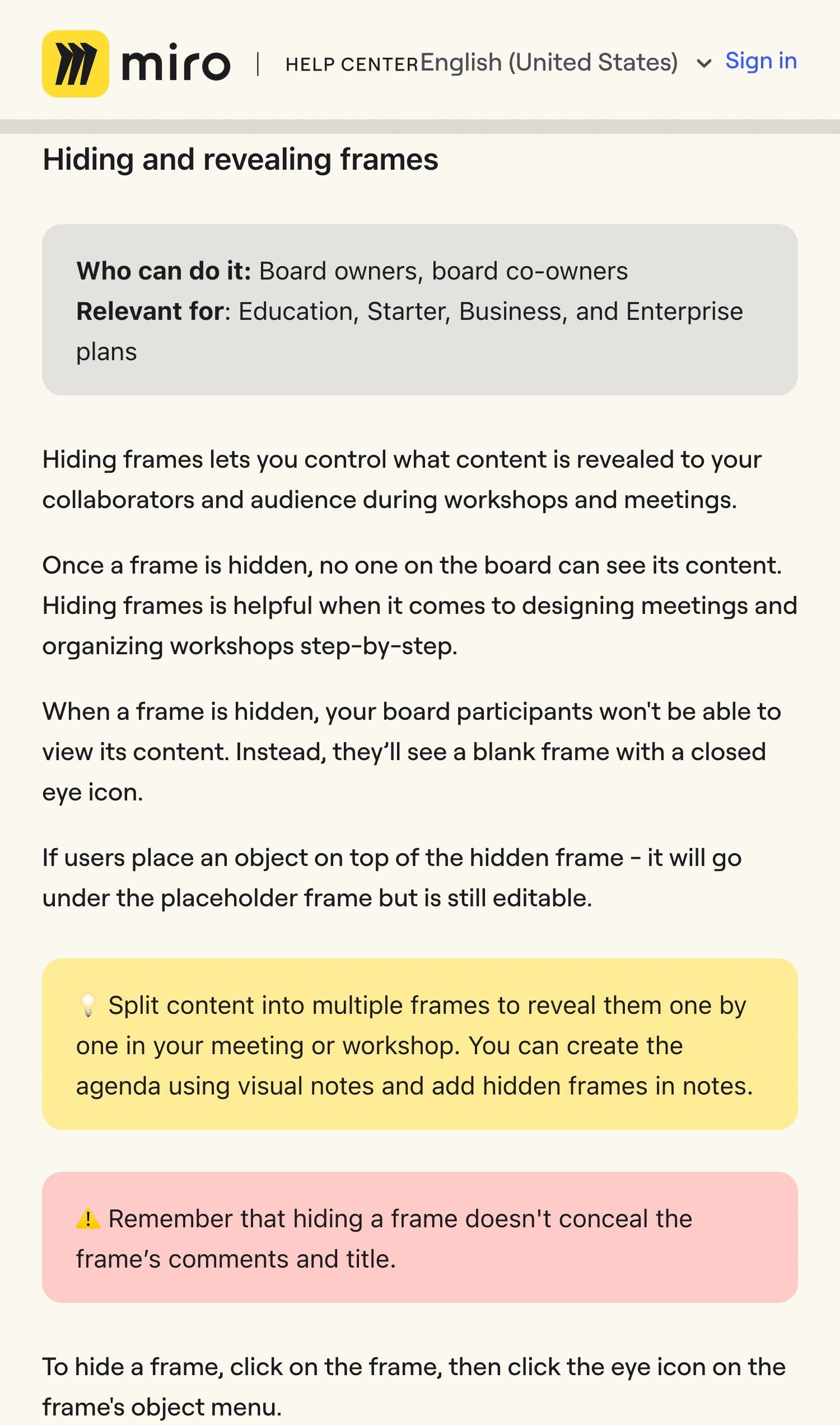
Miro Help Center, captured October 12, 2026. Cropped source excerpts preserve Miro branding and the hiding/revealing guidance; intervening frame-editing sections are omitted. The screenshot is not a generated interface.
Use the current presentation controls
Miro’s current Presentation mode guide identifies an enhanced mode rolled out during March and April 2026. This matters when a tutorial shows an older control layout.
Click Present at the top right of the canvas. Use the arrow controls or keyboard arrows to move through the frames. Review the order in advance so that your next action leads to the intended content.
In the updated mode, Go to canvas returns to the board without ending the presentation, and Go to slide returns to the frame deck. Miro says participants can move freely and collaborate on the canvas during that canvas phase. The presenter uses Stop to end the presentation.
These transitions deserve as much preparation as the opening slide. Decide whether you will show the canvas at all. If you need a live detour, prepare the exact area you will visit and rehearse the route back. Do not assume that a tidy presentation opening means every later board state is equally suitable for the audience.
Separate board participants from meeting viewers
Two people in the same meeting can receive your work through different paths. One watches the shared video; another also has the board open in Miro. A clean meeting picture does not settle what that second person can access through the board.
For this reason, treat board membership and sharing links as their own access decision. A frame-hiding workflow helps stage a presentation; it is not a reason to give a client a link to a working board full of unrelated material.
The distinction also applies to presenter notes. The current documentation contains a separate-window notes section alongside a conflicting older FAQ answer. Check the feature in your workspace instead of treating that wording as a confidentiality guarantee. Any private window that appears on a physical display you share deserves a recipient-view check. The speaker-notes guide helps you choose a source that excludes reference material.
Use a reveal checklist, not just a clean first slide
Before the call, run through a short sequence with sample content. Ask a colleague to watch the meeting feed while you perform the actions you actually expect to use.
| Action | What to check in the audience picture |
|---|---|
| Start Present | The intended first frame and readable text |
| Advance or jump to a frame | No unapproved title, preview, or content |
| Reveal a hidden frame | Only the material scheduled for this moment |
| Go to canvas | Nearby board content, comments, and navigation |
| Stop presenting | The ordinary editor before you resume private work |
Keep a simple recovery action ready: stop the meeting share, fix the view, then share the intended source again. Avoid editing private labels while they are already visible to attendees.
For a single prepared board, a browser tab or specific app window is usually the simplest meeting source. The tab-sharing guide explains how this keeps unrelated browser tabs outside the selected picture. It does not hide content inside the Miro tab itself.
Use ScreenK9 for the transition to other work apps
ScreenK9 is useful when your presentation moves from a Miro board to another approved app while private apps remain open locally. It creates a separate filtered macOS window from a selected display, with application rules and optional manual redaction regions.
Prepare the native Miro view first. Then choose only the work applications you intend to show, inspect ScreenK9 — Audience View, and share that window in the meeting. Run the Miro-to-app transition and the return while checking the received picture. The multi-app workflow covers the setup.
Ordinary application rules are app-wide. Allowing the Miro desktop app does not select only one of its board windows. Close unrelated Miro windows before relying on that configuration. A single-window native share remains a better fit when you need that particular boundary.
A manual region can cover a stationary strip of the outgoing picture. It cannot identify a confidential frame, follow it across a panning canvas, or conceal Miro content from someone who opens the board directly. Moving or zooming the board can bring previously covered content elsewhere. Use the fixed-region guide only when the area is predictable and you can recheck its geometry.
ScreenK9 does not provide OCR, automatic secret detection, or Miro permission management. Its filtered output reaches the meeting only when you share ScreenK9 — Audience View; selecting the physical display bypasses it. This is a workflow based on current capture rules, not a claim of a tested Miro integration.
Finish with the intended access and the intended picture
Before presenting, confirm the frame list, visible titles and comments, and the route through any canvas detour. Inspect both the meeting feed and any separately shared board as the appropriate recipient.
End the meeting share before opening unrelated boards or returning to private preparation. If attendees need a board link afterward, share the reviewed board with the intended access. Keep that decision separate from the window you used during the call.
Sources checked
- Miro: Frames, including hiding and revealing
- Miro: Updated Presentation mode
- Miro: Official presentation overview video
Documentation, video relevance, and ScreenK9’s current capture boundaries were checked October 12, 2026.