
Use the built-in Slides plugin first
Obsidian’s Slides documentation describes a core plugin that turns Markdown notes into presentations. Open Settings → Core plugins and enable Slides if it is off. The settings guide explains that core plugins are built in and can be enabled individually.
You do not need to install a community plugin for this basic workflow. Search results also discuss Advanced Slides, Slides Extended, and a community plugin named Native Slides. Their controls and features should not be assumed to belong to the built-in Slides plugin.
Prepare a new note containing only the material you want to present. Start with two short slides, check their appearance, then add the rest of your explanation. A separate audience note is easier to review than a research document containing private reminders between public talking points.
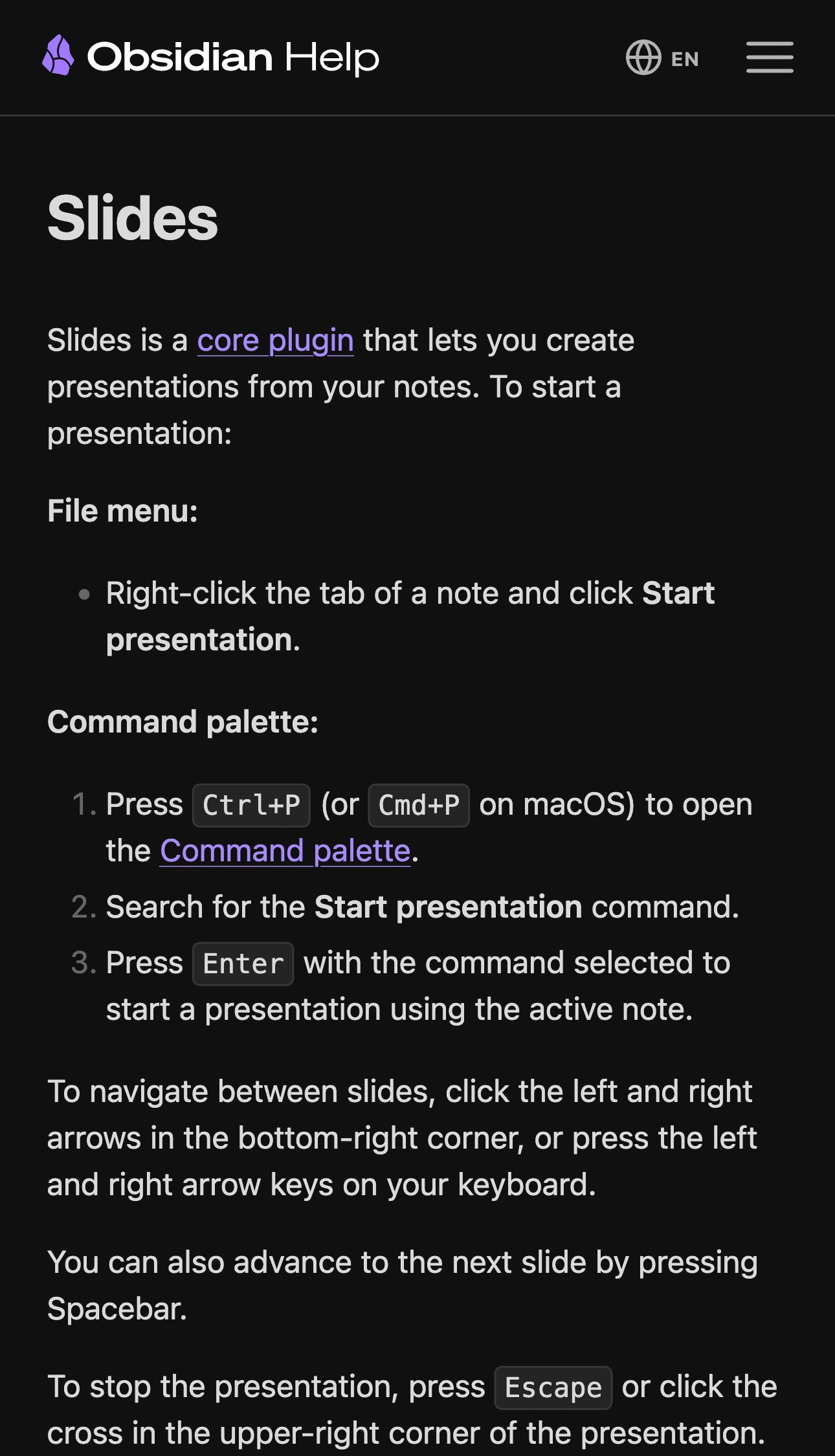
Obsidian Help, captured October 15, 2026. The page describes the built-in core plugin; additional presentation plugins have their own behavior.
Start with a minimal Markdown presentation
Put the separator on its own line, with empty lines around it:
## Project update

- What we finished
- What happens next

---

## Next steps

- Review the prepared example
- Agree on the next milestone
Open the note, right-click its tab, and choose Start presentation. Alternatively, press Command–P, search for Start presentation, and run that command. The official guide describes the arrow keys for navigation, Space to advance, and Escape or the upper-right cross to end the presentation.
Check every slide before the call. A heading that looks compact in the editor may become much larger in the presentation. A long bullet list can exceed the space that viewers can comfortably read. Split it into shorter sections instead of shrinking everything to fit.
Keep the first slide harmless and recognizable. It gives you an easy way to confirm the correct window in the meeting picker and on the receiving device.
Prepare the note before choosing the share
A slide separator divides content; it does not label one section “private.” If your speaker script is ordinary Markdown in the presentation note, do not assume the plugin will hide it from the audience.
Use a separate cue surface for private reminders. A sheet of paper or another device is straightforward. A separate notes app can also work when your meeting captures only the prepared Obsidian window. Verify that arrangement with a harmless practice sentence before putting real private material there.
If you specifically need a speaker view with notes, check the documentation for the exact presentation tool or plugin you choose. The speaker-notes guide covers dedicated presentation workflows. A feature demonstrated in an Advanced Slides tutorial is not evidence that core Slides provides the same separation.
Inspect images as carefully as text. A screenshot can contain a customer name, browser tab title, or account address even when the surrounding slide is clean. Replace it with an approved example before presenting.
A presentation vault can simplify preparation
Obsidian defines a vault as a folder containing notes, attachments, and configuration. Its vault guide explains how to create and switch between vaults.
For recurring public demos, consider a small vault containing only the prepared presentation and required attachments. This reduces the material you could accidentally open while answering questions. Copy selected audience-ready material rather than your entire research vault, and verify that images and internal links still resolve.
A separate vault is an organizational choice. It does not establish which app window the meeting captures, and it is not a ScreenK9 filtering boundary. If several Obsidian windows are open, select the intended window explicitly where the meeting supports that choice.
Be especially careful when searching live. Obsidian’s Search documentation describes searching across the vault; an empty search also shows recent search terms. Stop sharing before looking for an unprepared note.
Verify the full presentation sequence
A useful rehearsal covers transitions, not just the opening slide:
| Moment | Action | Audience check |
|---|---|---|
| Before presenting | Open the prepared note and start Slides | The opening slide identifies the right content |
| Starting the share | Choose the intended Obsidian window | Other windows and private cues stay outside it |
| Moving through slides | Advance, go back, and show an image | Text fits and media loads |
| Answering a question | Pause before leaving the prepared material | No unreviewed note appears |
| Finishing | Stop sharing, then exit Slides | The vault workspace is no longer broadcast |
Use another device or ask a colleague to inspect the received picture. Your local window arrangement alone cannot confirm the meeting’s capture choice.
If the presentation is being recorded, make a brief test recording and play it back. That can reveal unreadable text or an unintended transition before you produce the full video. The single-window recording guide explains the narrower recording approach.
Use ScreenK9 when the demonstration needs several apps
For one Obsidian presentation, sharing its prepared window is the simplest starting point. ScreenK9 is useful when the session also needs a browser, code editor, or other prepared applications, while a private reference app must stay outside the audience feed.
Allow the required applications, exclude the private reference app, and inspect the filtered output. Share ScreenK9 — Audience View in the meeting or recorder. The multi-app walkthrough covers that sequence. A physical display selected directly in the meeting bypasses ScreenK9’s output.
Ordinary application rules cover the entire app. Allowing Obsidian does not let ScreenK9 distinguish a public vault window from a private vault window. Keep private cues in an excluded application or another device, or stay with native sharing of one specific window.
Manual redaction regions cover chosen areas; they do not follow a note as it scrolls or automatically recognize confidential text. ScreenK9 provides no OCR or automatic secret discovery. Preparing the allowed content remains your responsibility.
End the share before leaving Slides to browse your vault. That final transition is part of the presentation workflow, even after the last slide has finished.
Sources checked
Platform instructions and ScreenK9 capture boundaries were checked October 15, 2026. The rehearsal is a suggested verification procedure, not a claim that your particular setup has been tested.