
Use the Mac control for your Outlook experience
Microsoft's Mac attachment-preview documentation gives View → Reading Pane → Hidden as the way to turn off the reading pane. Start there in the current Mac application and check the resulting window before you begin presenting.
The reading pane is the area that displays the selected message alongside the message list. Removing it changes the layout. The list of messages is a different surface, so senders, subjects, dates, and any visible preview text still need your attention.
If your installation uses Legacy Outlook, Microsoft has a separately labelled Legacy views guide. Its route is Organize → Reading Pane, then Off. Do not switch Outlook experiences merely to follow a tutorial; match the instructions to the application you already have.
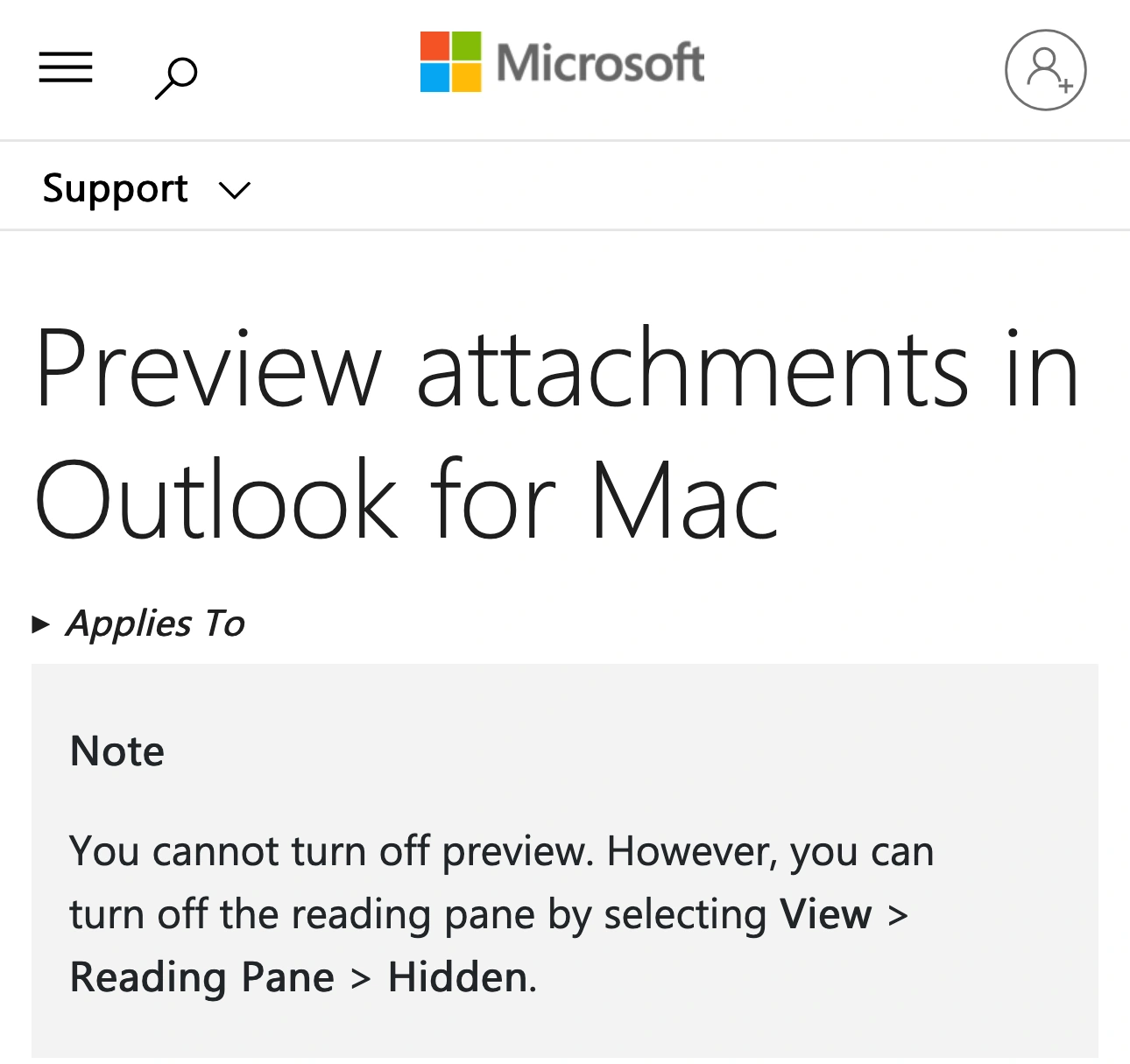
Source: Microsoft Support, captured November 5, 2026. Two unaltered excerpts preserve the branding, page title, and relevant note; intervening content is omitted.
Search results frequently mix Mac instructions with Windows and Outlook on the web. Microsoft's general Reading Pane guide lists Windows products and describes options such as Fill screen. Those instructions should not silently replace the Mac-specific path above.
Check what the hidden pane leaves behind
Hiding a message body can make an inbox demonstration less distracting, but it is not a privacy mode. Before sharing the Outlook window, inspect the remaining surfaces with the same care you would give the message itself.
| Surface | What to prepare | What to rehearse |
|---|---|---|
| Message list | Suitable senders, subjects, and snippets | Selecting another message |
| Folder list | Appropriate account and folder names | Changing folders |
| Open message | Audience-ready body and recipients | Opening or closing its window |
| Attachment | A safe demonstration file | Previewing or opening it |
| Notifications | Quiet presentation settings | Receiving a harmless test alert |
For example, a support-training inbox might contain a harmless selected email while a neighboring subject reveals a customer escalation. Closing the reading pane removes the large body area; it does not make the surrounding list suitable for training.
Use a demonstration mailbox or prepared folder when possible. If the task requires only one message, consider opening that prepared message in its own window and sharing that window through the meeting app. Verify the actual received picture before relying on it, including what happens when the window closes.
For a demonstration that does not need email at all, keeping Outlook outside the shared source is simpler than cleaning up the entire inbox. The notification checklist addresses the separate problem of alerts appearing during the call.
Treat attachment preview as a separate action
Microsoft distinguishes attachment preview from the reading-pane layout. Its Mac documentation says preview itself cannot be turned off through that control; the pane can be hidden. Do not describe Hidden as disabling every way of opening or previewing a file.
A presenter can still open a message or attachment deliberately. The important question then becomes which window receives the content and whether that window is included in the meeting source. Test with a harmless file rather than discovering that behavior while a private attachment is selected.
Before showing a real email, inspect the whole conversation and any quoted history. Check the recipient fields, signature, attachment names, and links as well as the visible paragraph. If only the main point matters, a prepared slide or document may be a clearer presentation source than the original message.
Private speaking cues also belong outside the audience picture. Our speaker-notes guide covers ways to keep a reference available without placing it beside the material being shared.
Keep Outlook excluded during a multi-app demo
ScreenK9 becomes useful when a walkthrough moves between approved work applications while email needs to remain available locally. Configure a Show only selected profile for the work apps, leave Outlook excluded, and inspect ScreenK9 — Audience View while rehearsing the transitions.
Choose that named window as the meeting's sharing source. The multi-app sharing guide explains this setup. Sharing the physical display directly bypasses ScreenK9's filtered output.
Excluding Outlook is an application-level decision. ScreenK9 does not understand mailboxes, messages, recipients, or attachments. It cannot allow one ordinary Outlook window while excluding a different Outlook window. If the demo needs Outlook itself, prepare all Outlook material that might enter the captured display, or use native sharing of a single prepared window.
ScreenK9 does not use OCR or automatic secret detection to inspect email. Chrome Companion's profile classification is specific to Chrome and does not turn Outlook accounts into separate capture identities. A clean opening frame still needs a rehearsal of the next action.
If the pane returns after restarting Outlook
Recheck the setting after relaunching the application and before a presentation. If it changes unexpectedly, first establish which Outlook experience and version you are using, then consult the relevant Microsoft support information.
Microsoft documented a Legacy Outlook reset issue after particular 2025 builds and marks it fixed in its known-issue notice, last updated November 4, 2025. The notice identifies build 16.102.3 as the fix. It is historical context, not evidence that every current Outlook installation has the same bug.
Avoid applying registry instructions or Windows ribbon fixes to a Mac because they appear high in search results. If the symptom persists, record the Mac app version, selected layout, and whether it changes immediately or only after restart. Those details make a support request more useful than a generic report that “preview is back.”
Verify one complete email transition
Before the meeting, hide the pane and inspect the message list. Select a harmless message, open it if the demonstration requires that action, then open a safe attachment and return. Check the result from another device or a short recording.
For a recording, the single-window recording guide helps you choose the source. Review the saved sample rather than assuming it matches the local window.
Finish the rehearsal by stopping the share before returning to personal mail. The useful boundary is the content the audience receives throughout that sequence, including the inbox that remains after the reading pane disappears.