
Hide optional slides before starting the call
Start with PowerPoint's native control. In Normal view, select the slide in the left navigation pane, open its context menu, and choose Hide Slide. Microsoft's macOS instructions show a prohibited, or “no,” symbol on the thumbnail after hiding it.
To bring that slide back into the normal sequence, Control-click its thumbnail and choose Unhide Slide. Do this while preparing the deck, then run the presentation from the beginning to check the actual route through it.
A useful example is a technical appendix. The main talk can move from the problem to the recommendation, while an optional architecture slide stays available for questions. Hiding is appropriate when the audience may see the material but does not need it in the planned sequence.
Use a separate presentation copy when the audience must never receive a particular slide. A hidden pricing model or internal customer list is still part of the deck. Naming a file “external” does not change its contents: inspect that copy before presenting or attaching it to a follow-up message.
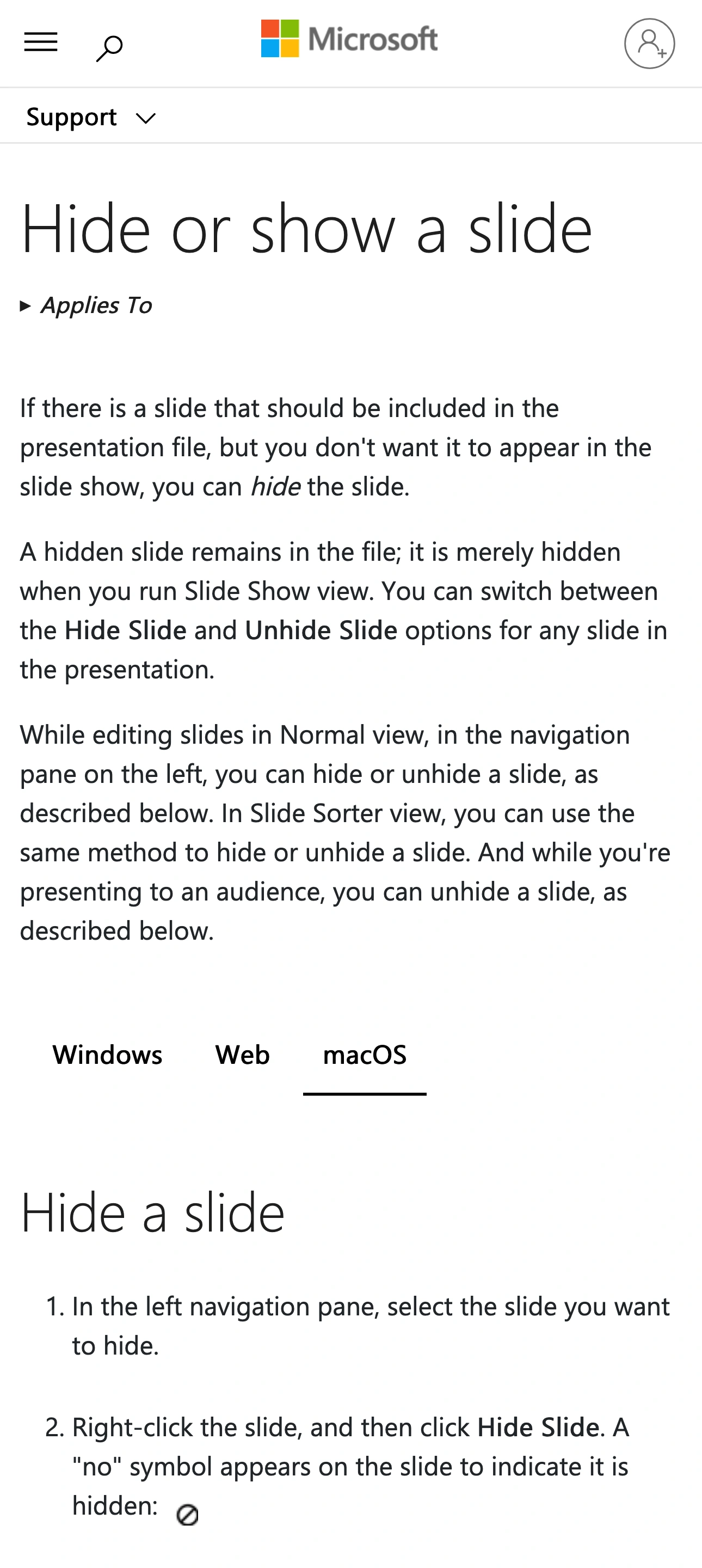
Source: Microsoft Support, captured November 1, 2026 with macOS selected. The native screenshot is cropped below the Hide a slide instructions; page content is unchanged.
Know how a hidden slide can return
PowerPoint intentionally provides ways to show hidden material during a presentation. Microsoft's Mac guidance describes pressing H from the preceding slide when the full-screen slide show is on all monitors. In Presenter View, the slide navigation pane also lets you select a hidden slide.
Those are useful presentation controls, so a rehearsal should include them. Mark an optional slide with harmless sample text, hide it, and walk through the deck normally. Then deliberately reveal it using the method that matches your display setup. You should understand both paths before using a real appendix.
Do not assume that hiding also removes a thumbnail from the editor, deletes speaker notes, or prevents another person with the file from opening the material. These are different operations. The simplest rule is to keep only audience-appropriate content in the version that leaves your computer.
Check the four places your slides can appear
| Surface | What to check | Practical action |
|---|---|---|
| Normal slide-show sequence | Whether optional slides are skipped | Advance through the full deck once |
| Editor or Presenter View | Thumbnails, notes, and navigation | Keep these outside the shared source |
| Distributed PowerPoint file | Every slide retained in the deck | Review a separate audience copy |
| Exported PDF | The pages in the actual output | Open the saved PDF and inspect it |
This check separates a presentation choice from a sharing decision. You might safely keep an optional diagram in your own master deck, show it during questions, and still decide to send a shorter follow-up file. Plan those versions explicitly instead of expecting one visibility setting to manage every destination.
Also inspect the first and last moments of a call. The middle of a slide show may be clean while starting or ending it reveals the editor. Stop sharing before returning to private preparation material.
Choose the slide output as the meeting source
For a deck-only presentation, share the slide-show window offered by your meeting app. Avoid selecting a source that includes PowerPoint's editing workspace or the entire desktop when you only need finished slides.
If you need a windowed show on one display, use the separate PowerPoint windowed slide-show guide. If you need to read prompts while presenting, the speaker-notes sharing guide covers the separation between notes and audience output.
Run a short test call or recording with an ordinary sample deck. Open the slideshow, select the intended source, advance past a hidden slide, and return to editing. Inspect the receiver's picture at each step. A thumbnail in the share picker is only a starting point; it does not prove that the transition back to editing is appropriate for your audience.
If the test reveals private content, narrow the source or simplify the presentation copy. Rehearse again after changing display arrangement, switching presentation mode, or opening another PowerPoint document.
Do not copy Windows PDF instructions onto a Mac
Microsoft's PDF guide covers several platforms on one page. Its Windows section includes options for hidden slides and other output details. The macOS section describes File → Save As → PDF and File → Export → PDF, and says that an option to include hidden slides is unavailable there.
That distinction matters when an online tutorial tells you to clear an “Include hidden slides” checkbox that you cannot find on your Mac. Follow the macOS section for the export route you actually use.
Open the resulting PDF separately and review its thumbnails and pages. Confirm that it contains the intended beginning, ending, and appendix. If you need a particular selection, create and review a presentation copy containing those slides before export. Do not send the editable master as a workaround for an unchecked export.
Use the same discipline for handouts or another conversion service: inspect the final artifact. A successful export only confirms that a file was created; your review confirms that it is the file you intended to share.
Add ScreenK9 when the demo moves beyond the deck
A presentation may continue into a browser dashboard, an editor, or another work app. ScreenK9 can produce one ScreenK9 — Audience View window from a selected display while filtering ordinary applications as whole apps.
Prepare an Allow only profile for the apps needed in that sequence. Keep your presentation copy audience-ready, configure the intended Chrome profile through Chrome Companion when Chrome is involved, and inspect the output while switching sources. Select ScreenK9 — Audience View in the meeting app. The multi-app sharing guide explains that setup.
ScreenK9 does not read the deck, detect confidential slides, or decide whether hidden slides are appropriate. It cannot allow one ordinary PowerPoint window while independently excluding another PowerPoint window. Private editor and presenter windows therefore need their own preparation; native slideshow-window sharing remains the simpler option for a deck-only talk.
Sharing the physical display directly bypasses Audience View. ScreenK9 also does not route meeting audio, so check the meeting app's sound settings independently.
Finish with a receiver-side rehearsal
Before the real presentation:
- Confirm that the audience copy contains no confidential slides.
- Advance through the normal slide sequence and check the skipped material.
- Rehearse any intentional reveal during questions.
- Check the transition into and out of the slide show from the receiver's view.
- Open any PDF or PowerPoint file you plan to send and review that exact file.
Hide optional material to manage the talk. Prepare a separate audience copy to manage what you distribute. Choose and test the meeting source to manage what viewers see live.
Sources checked
- Microsoft Support: Hide or show a slide
- Microsoft Support: Save PowerPoint presentations as PDF files
- Intellezy Learning: How to Hide a Slide in PowerPoint
Documentation and ScreenK9's implementation were reviewed November 1, 2026. The rehearsal above is a recommended check for your setup, not a claim that every PowerPoint and meeting-app combination was tested.