
Start with the file, not a desktop share
For a slide presentation, PowerPoint Live is a useful native first choice. You can keep the meeting and your speaking prompts together without arranging a second monitor. The important choice happens in Teams’ sharing picker: select the presentation file under PowerPoint Live, rather than a screen containing your PowerPoint editor.
Microsoft’s PowerPoint Live instructions apply to PowerPoint for Microsoft 365 on Mac. In a meeting:
- Select Share or Share content.
- Find the intended presentation in the PowerPoint Live section.
- If it is absent, use Browse OneDrive or Browse my computer after reviewing the file-access implications below.
- Confirm that the expected deck opens and that your notes are alongside the slides.
- Advance a harmless test slide and check the attendee view.
If the deck is already open in PowerPoint on Mac, Present in Teams is another documented entry point. Use a rehearsal meeting before relying on it for a client call. Finish changes early enough for the presentation to synchronize, then verify the actual version loaded into the meeting.
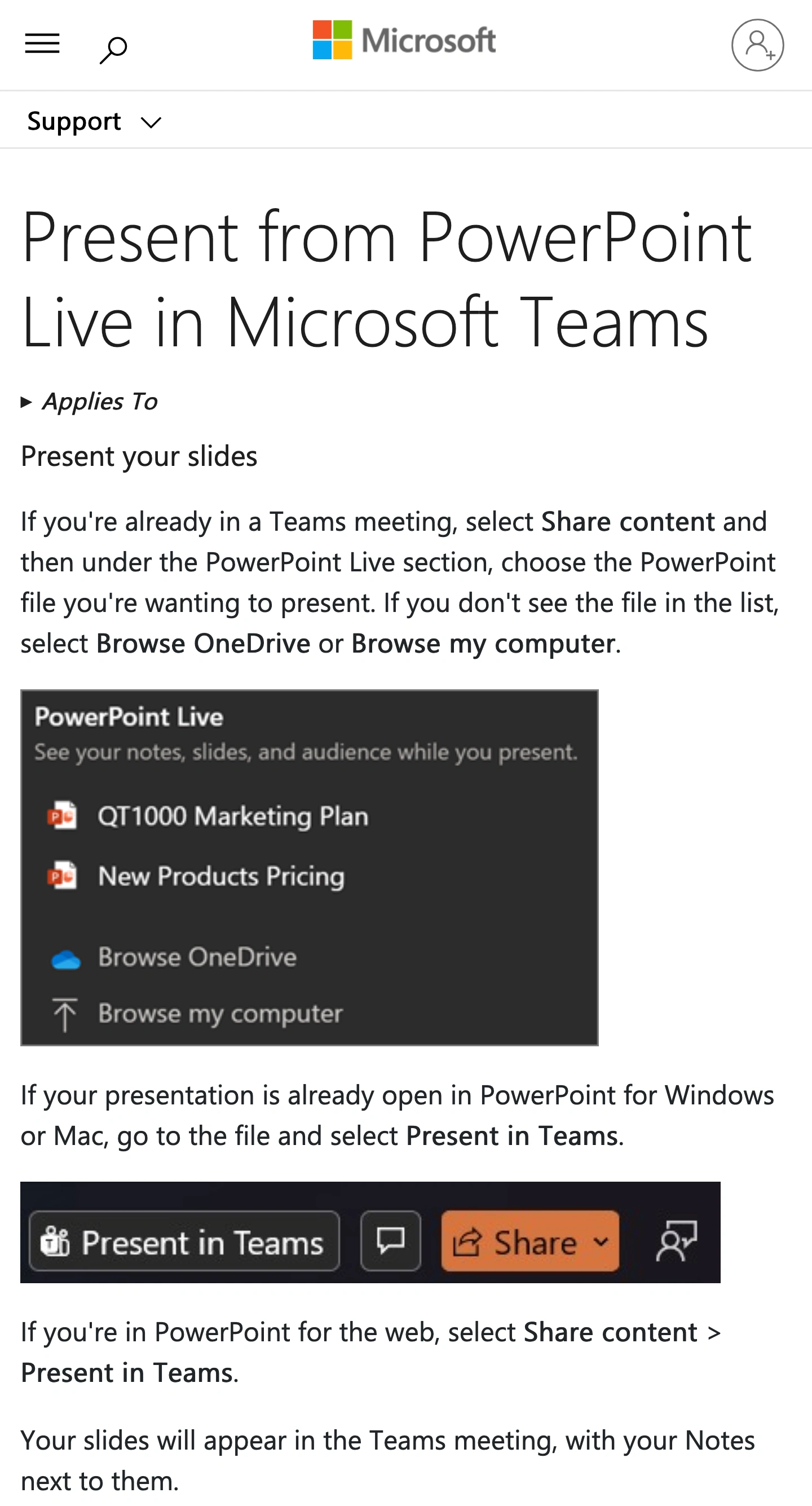
Microsoft Support, captured November 13, 2026 using a native Retina screenshot. The source header and presentation steps are unaltered excerpts in their original order; intervening introductory content is omitted.
Keep three different privacy questions separate
Seeing your own notes is not evidence that attendees see them. Equally, a clean slide view does not tell you who can open the underlying file later. Treat presentation layout, slide navigation, and file access as separate decisions.
| Question | What to check |
|---|---|
| Can attendees see my presenter workspace? | Confirm PowerPoint Live is the active source, then inspect a receiver |
| Can someone jump ahead in the deck? | Review the participant-navigation control |
| Who can access the presentation file? | Review the file’s location and permissions |
| What appears when I leave the slides? | Rehearse the next share source before switching |
This distinction matters in a mixed presentation. A sales deck may be safe for the call while an appendix, working note, or linked document is not ready to distribute. Prepare an audience copy containing only material appropriate for the people in that meeting. Do not use a navigation setting as a substitute for reviewing the deck itself.
The separate guide to keeping speaker notes private covers native slideshow windows in other presentation apps. PowerPoint Live’s file-based route is a different choice from those window-sharing arrangements.
Review uploads and independent slide navigation
Microsoft’s Teams-specific PowerPoint Live guide documents an important distinction. Presenting an existing OneDrive or SharePoint item does not change its access permissions outside the meeting. Browsing to a file that has not previously been uploaded causes an upload as part of the meeting.
A new upload in a channel meeting goes to the channel’s Files area, available to its team members. In a private meeting, Microsoft describes an upload to your OneDrive with access for meeting participants. Decide whether that is appropriate before selecting the file. If you only intend to show pixels and do not want that upload workflow, use a prepared slideshow window instead.
Participants may also navigate slides independently. The current guide describes Turn off participant navigation; some instructions and interfaces use Private view. Check the control’s description in your actual meeting. Turning navigation off keeps the live sequence together; it does not remove confidential content from the file.
For a local alternative, follow the PowerPoint windowed slideshow guide. Avoid switching to a desktop share merely because a file is missing from the recent list.
Diagnose a missing presenter view before the call
First confirm that you selected a file under PowerPoint Live. Sharing an ordinary PowerPoint window does not turn that window into the Teams presenter experience. Also verify that the deck is in a supported format: Microsoft lists .pptx and .ppsx, rather than legacy .ppt files.
On a small display, look below the current slide for More options → Show presenter view. Microsoft documents that the presenter view can be hidden by default on small screens. Use the visible menu rather than assuming a Windows shortcut works identically on your Mac.
Keyboard and VoiceOver users can follow Microsoft’s Mac instructions for presenting and co-presenting. Those instructions distinguish the share tray, slide controls, and slide notes. They are useful for confirming which surface has focus before navigating.
If the presentation still does not load, stop and rehearse the windowed alternative. Do not troubleshoot with a private desktop already visible to the audience. Keep a short, sanitized copy of the deck available so the fallback has fewer moving parts.
Use ScreenK9 for the demo after the slides
A deck-only meeting can stay in PowerPoint Live. ScreenK9 becomes useful when the next part of the meeting moves through several work apps while a separate personal or notes app should remain outside the audience picture.
Prepare an Allow only profile containing the apps needed for the live demonstration. Keep the notes in a different, excluded application. Start capture, inspect ScreenK9 — Audience View, and rehearse the browser-to-editor-to-document sequence with harmless content. When ready, stop the slide share and select that exact Audience View window in Teams. The Teams multi-app guide explains this transition in more detail.
ScreenK9 creates a separate filtered macOS window. It does not modify PowerPoint Live, control slide permissions, or intercept Teams traffic. Sharing the physical display directly bypasses its filter. Ordinary-app rules apply to the entire app: ScreenK9 cannot allow a PowerPoint slideshow while independently hiding another PowerPoint presenter window.
Close private documents inside approved apps. Manual redaction regions cover areas you configure; they are not OCR, secret detection, or masks that follow moving text. These limits are especially relevant when leaving a prepared deck for an interactive demonstration.
Rehearse the handoff in both directions
Run a short meeting with a second participant device and harmless notes. Check the opening slide, an independent-navigation attempt, the switch into the live demo, and the return to slides. If you will record the meeting, review that recording separately; Microsoft documents limitations for capturing PowerPoint Live videos, animations, and annotations.
Finish by stopping the share before reopening your working desktop. A safe slide presentation includes its opening and closing transitions, not only the slides in the middle.
Sources checked
- Microsoft: present from PowerPoint Live
- Microsoft: share slides, file access, and participant navigation
- Microsoft: PowerPoint Live with a screen reader on Mac
Documentation and ScreenK9’s current implementation were checked November 13, 2026. The receiver checks above are a rehearsal procedure, not a claim that every Teams account and meeting configuration was tested.