
Clear the page before the audience arrives
Open the exact page you intend to show. Use the Page Menu in Safari’s Smart Search field, then Hide Distracting Items. Select the surrounding elements that interfere with the demonstration and finish with Done. Apple’s Safari Distraction Control guide documents this sequence and the Show Hidden Items command for reversing it.
Begin with something harmless, such as a newsletter invitation beside an article. Avoid removing navigation you will need later in the walkthrough. If the demonstration includes a form, leave its labels and relevant controls visible so the audience can understand what the next action does.
This is useful preparation when the website itself is the subject. A cleaner page can make a chart, product feature, or document easier to follow. It also lets you decide what belongs in the explanation before participants are watching you rearrange the screen.
Make the changes while sharing is stopped. Opening a page and then hiding an unwanted item gives viewers an opportunity to see that item first. When the content is sensitive, start with a sanitized example or an appropriately limited account instead of relying on last-second cleanup.
Know what can come back
Apple’s current support article requires macOS 15 or later and says Distraction Control works best on items that do not change regularly. It is not a permanent way to remove advertisements or frequently updated content.
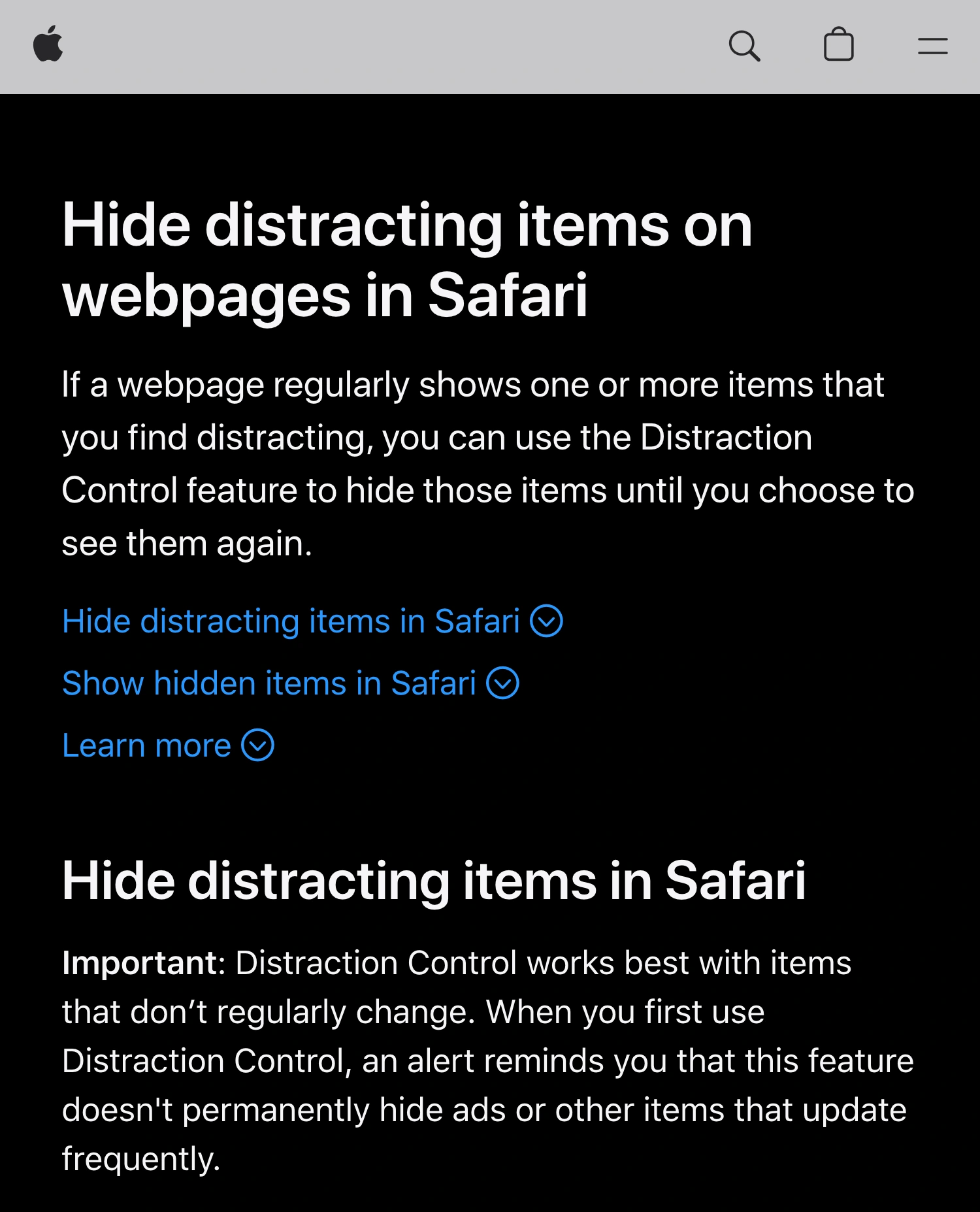
Apple Support, captured October 2, 2026 at 3× resolution. The warning about changing content is part of the feature’s documented behavior.
Treat the prepared view as something to rehearse. Reload the page, navigate to the next destination, and try the interaction that opens a panel or changes the layout. If something returns, decide whether to remove it again, change the demonstration route, or use a different source for the presentation.
An account name in a different location is a new presentation problem, even if the opening page looked clean. A successful first frame is not evidence that the entire task is ready. For a live demonstration, the important frames include the search, the result, the detail view, and the return to the original page.
Apple also documents that hidden items can apply across Safari profiles on the same device. That makes this unsuitable as a promise that one profile keeps its full interface while another automatically gets an independent presentation layout. Check the actual profile and page you will use.
Use Reader when the task is simply reading an article
If you only need to discuss an article’s text, try Page Menu → Show Reader first. Apple’s Reader guide describes a reading layout without navigation and other distractions, with adjustable text size and appearance. Reader is available when Safari recognizes an article it can display.
Choose Distraction Control when you need to preserve the surrounding website experience while removing selected distractions. Choose Reader when that surrounding experience is unnecessary. For example, explaining a paragraph usually needs a readable paragraph; demonstrating how to use a website usually needs the real navigation and controls.
Neither choice decides which window your meeting app transmits. Once the page looks right, select a narrow sharing source that contains the demonstration. The guide to sharing without exposing other tabs covers that separate decision.
Decide whether both views should change
| What you need | Start with | What to check |
|---|---|---|
| Remove a distraction from your own page | Safari Distraction Control | The next page state and reload |
| Read an article clearly | Safari Reader | Text size and required illustrations |
| Show one prepared browser window | Native window sharing | Tabs and browser controls inside it |
| Keep a stationary area visible only to you | A tested audience-only mask | Exact position after every layout change |
| Move between Safari and other work apps | An approved multi-app audience view | Every app and transition |
Consider a presenter who needs a reference value beside a chart. Hiding that element in Safari also removes it from the presenter’s page. If the value must remain available locally, decide whether to move the reference to an unshared window or use a separate audience picture.
Moving a reference out of the shared source is often simpler than masking it. Use a mask only when the layout is stable enough to verify and the audience still has all the information needed to follow the explanation.
Use ScreenK9 for an audience-only area or multi-app demo
ScreenK9 creates a filtered window from a selected display. It can be useful when the presentation needs to move between Safari and another approved application while unrelated apps remain open locally.
Choose Show only selected, approve the work apps, and inspect ScreenK9 — Audience View. Share that named window in the meeting. Sharing the physical display directly bypasses the filtered output. The multi-app sharing guide explains that source setup.
Ordinary application rules cover all windows belonging to the approved app. Approving Safari does not isolate one Safari window or one Safari profile. Close unrelated Safari windows or use native sharing of a single prepared window when that is the actual requirement. Chrome Companion’s Work/Personal classification is specific to Chrome; it does not classify Safari profiles.
A manual privacy region can cover a fixed area in the audience output while you retain the local view. Follow the manual area-masking guide and inspect the result before sharing. The region stays at fixed display coordinates: it does not follow a webpage element when you scroll, resize, zoom, or move the window.
ScreenK9 does not read the page’s structure, perform OCR, or automatically find secrets. A moving sidebar, dropdown, or new page needs another check. If the presentation already fits in one clean native window, that simpler source is sufficient.
Rehearse the change, not just the starting page
Before the call, run this short sequence with safe sample content:
- Open the intended page and remove only the distractions that obstruct the explanation.
- Reload and follow the planned link or form interaction. Confirm that the useful content remains readable.
- Inspect the shared source from a receiving participant view or a short test recording.
- If using a manual region, test scrolling and resizing before deciding to keep that layout fixed.
- Practice stopping the share before restoring hidden items or opening a private reference.
After the presentation, use Show Hidden Items when you need the original page layout again. Keep that restoration outside the live share if the restored material is not intended for the audience.
The practical rule is to prepare the page, select the smallest useful source, and rehearse the next change. A tidy browser view is the starting point; the receiving view is the result to verify.