
Create a separate window for the website
Safari web apps are useful for a walkthrough that should stay inside one website: a project board, a customer demo, or a reference page. They remove the need to present from your everyday row of browser tabs.
Follow Apple’s current web-app instructions:
- Open the intended page in Safari.
- Choose File → Add to Dock.
- Give the saved app a name you can recognize in a screen-sharing picker.
- Open it from the Dock and navigate to the approved starting page.
For one website, select that web-app window in your meeting app. Read the preview and confirm the receiver’s view. If the picker does not identify the intended window clearly, stop and use a prepared browser window you can identify.
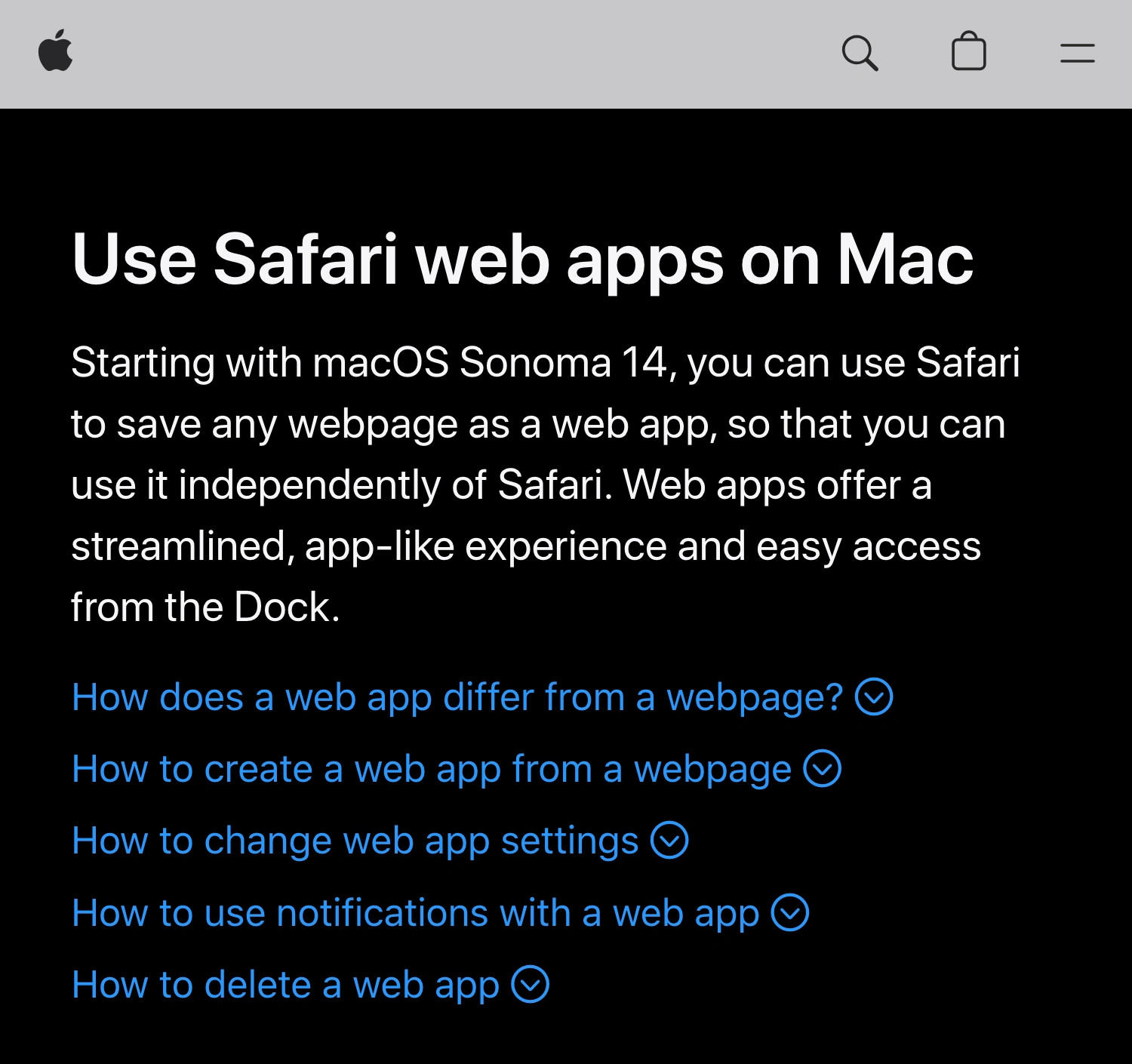
Apple Support, captured October 5, 2026. The official guide describes a web app that runs independently of Safari.
This workflow is different from selecting the entire display. The display can still contain your normal browser, desktop, and other apps. Saving a website to the Dock does not filter a display share.
If a meeting app already offers a suitable single-tab share, that may be the shorter route. The guide to sharing without other tabs explains the broader choice between a tab, window, and full display.
Separate storage does not mean clean content
Apple documents separate ongoing website data, cookies, history, and settings for web apps. However, the WWDC23 web-app session explains that creating one can copy login cookies from Safari.
Do not assume Add to Dock creates a signed-out demonstration environment. Inspect the account currently shown, the organization name, recent items, and any personal navigation inside the website.
Prepare the site itself before the call:
- Use an approved demonstration account when available.
- Open a record containing fictional or shareable data.
- Check account menus, sidebars, and recent-item lists.
- Remove private search text from the website’s own search field.
- Start from a predictable page with a short route to the next step.
For example, a clean-looking project board can still reveal a client name when you open its workspace switcher. The web-app frame cannot decide whether that name is appropriate for the audience.
This is also why the saved app’s name should be neutral. A title such as “Product demo” is easier to recognize during setup than a private client name. Naming the app does not rename records inside the service.
Decide what the toolbar should show
The web app’s Settings include Show navigation controls. Hiding those controls can simplify the local window, but it also removes controls you may need while presenting. Choose the layout during rehearsal and keep it consistent.
Apple’s current guide also lists web-app extension settings. Older tutorials describing the original release may no longer match today’s controls. Follow the current support page when the video and installed version differ.
Neither toolbar cleanup nor a minimal app frame removes sensitive information inside the page. If the problem is a distracting webpage item, Safari Distraction Control addresses that separate task. It still requires checking the content that remains visible.
Rehearse links that leave the app
A web app is not a promise that every link stays in its original window. Apple’s WWDC session explains navigation scope and how links can open outside the app. Authentication routes also deserve a rehearsal.
Make a small route map for the actual demonstration:
| Action you plan to take | What to check before the call |
|---|---|
| Open another page in the same service | The receiver sees the expected page |
| Follow an external help link | Whether it opens outside the shared window |
| Open the account or workspace menu | All visible names and organizations are approved |
| Start a sign-in step | No password, one-time code, or private account selector is shown |
| Download or choose a file | The interaction does not introduce private filenames |
| Open another app window | You know whether the selected share includes it |
If the route leaves the shared window, the audience may simply stop seeing the next step. Do not respond by hurriedly switching to the whole display. Stop the share, prepare the next source, then resume with a checked preview.
Use a second device or a trusted participant to watch the rehearsal. Your local screen tells you where the link opened; the remote view tells you whether the audience followed it.
Check notifications under the web app’s own name
Web apps can request notification permission. Apple’s support guide explains that their notifications and Dock badges can appear under the web app’s own identity.
Check the saved app’s notification settings before presenting, especially if you enabled alerts while preparing it. Do not assume changing Safari’s settings necessarily answers the same question for the saved app.
Also inspect notification-like content inside the website: inbox counts, chat widgets, toast messages, or activity banners. Those are page content and can appear in the shared window even when you have dealt with desktop notifications.
When the walkthrough needs several apps
Stay with native window sharing when the whole presentation fits inside the prepared web app. ScreenK9 becomes relevant when the route also needs, for example, an editor and a slide deck while your everyday browser remains open locally.
ScreenK9 creates an ordinary filtered window named ScreenK9 — Audience View. A cautious setup is:
- Open the saved web app and the other approved apps.
- In ScreenK9, choose Show only selected.
- If the saved web app appears as its own named application in the list, select it and the other required apps.
- Leave the general browser out of the selection.
- Inspect Audience View through every transition, then share ScreenK9 — Audience View.
The multi-app sharing guide explains the overall setup. If the saved app is not listed separately, use native window sharing; this article does not claim a verified Safari-to-ScreenK9 identity mapping for every macOS version.
Ordinary app selection applies to an app’s windows together. It cannot automatically distinguish a public document from a private window of the same app. ScreenK9’s Chrome companion does not provide Safari profile classification.
ScreenK9 does not sanitize the web account, inspect page text for secrets, or repair a link that opens the wrong destination. Sharing the physical display directly bypasses its filtered output.
Keep the boundary simple
For a single-site demonstration, prepare the website and share its saved app window. For a multi-app demonstration, verify each app’s inclusion and every transition in the actual outgoing view.
Apple documentation and ScreenK9’s implementation were reviewed October 5, 2026. The route checklist is guidance for testing your setup; no live Safari web-app meeting compatibility experiment is claimed here.