
Choose the smallest source that contains the demo
For one website, start with a browser tab. For a desktop presentation, choose its window. Sharing your entire display is useful only when the audience genuinely needs everything visible on it. A narrow source makes the rehearsal easier because there is less content to inspect.
StreamYard's screen-sharing instructions describe the source picker and its three choices. The practical decision is about the material you need to show, not how many monitors you own.
| Your demonstration | Start with | Inspect before sharing |
|---|---|---|
| One website | Browser tab | Page content and account details |
| One desktop app | Application window | Document, sidebar and visible dialogs |
| Several approved apps | A prepared audience window | Every app transition |
| The whole desktop | Entire screen | Everything on that display |
A browser tab can still contain private information. A desktop window can still show an internal document. Choosing a smaller source limits the captured area; it does not decide which information inside that area is appropriate for viewers.
Rehearse the native sharing sequence
Prepare a harmless page or presentation before entering a real broadcast. Give it an obvious title such as “Demo rehearsal,” so the correct thumbnail is easy to identify in the picker.
- Enter the StreamYard studio and open Present → Share screen.
- Review any screen-sharing prompt, then open the source picker.
- Select the tab or window containing the rehearsal material.
- Confirm the selected thumbnail before clicking Share.
- Inspect the stage and the source's backstage card.
- End the share before opening material that should remain private.
If macOS blocks capture, resolve that before the show. Apple documents capture access under System Settings → Privacy & Security → Screen & System Audio Recording. The permission belongs to the browser doing the capture. Follow any restart prompt before returning to the studio; our Mac screen-recording permission guide covers that separate setup task.
Do a second rehearsal after changing the browser, display arrangement or source window. A previously successful share is useful evidence for that setup, but it does not verify a newly selected source.
Backstage is a separate decision from source selection
The important setting is Automatically add shared screens/videos to stream. When enabled, it sends the shared source directly to the stream. Do not treat clicking Share as a guaranteed private preview step.
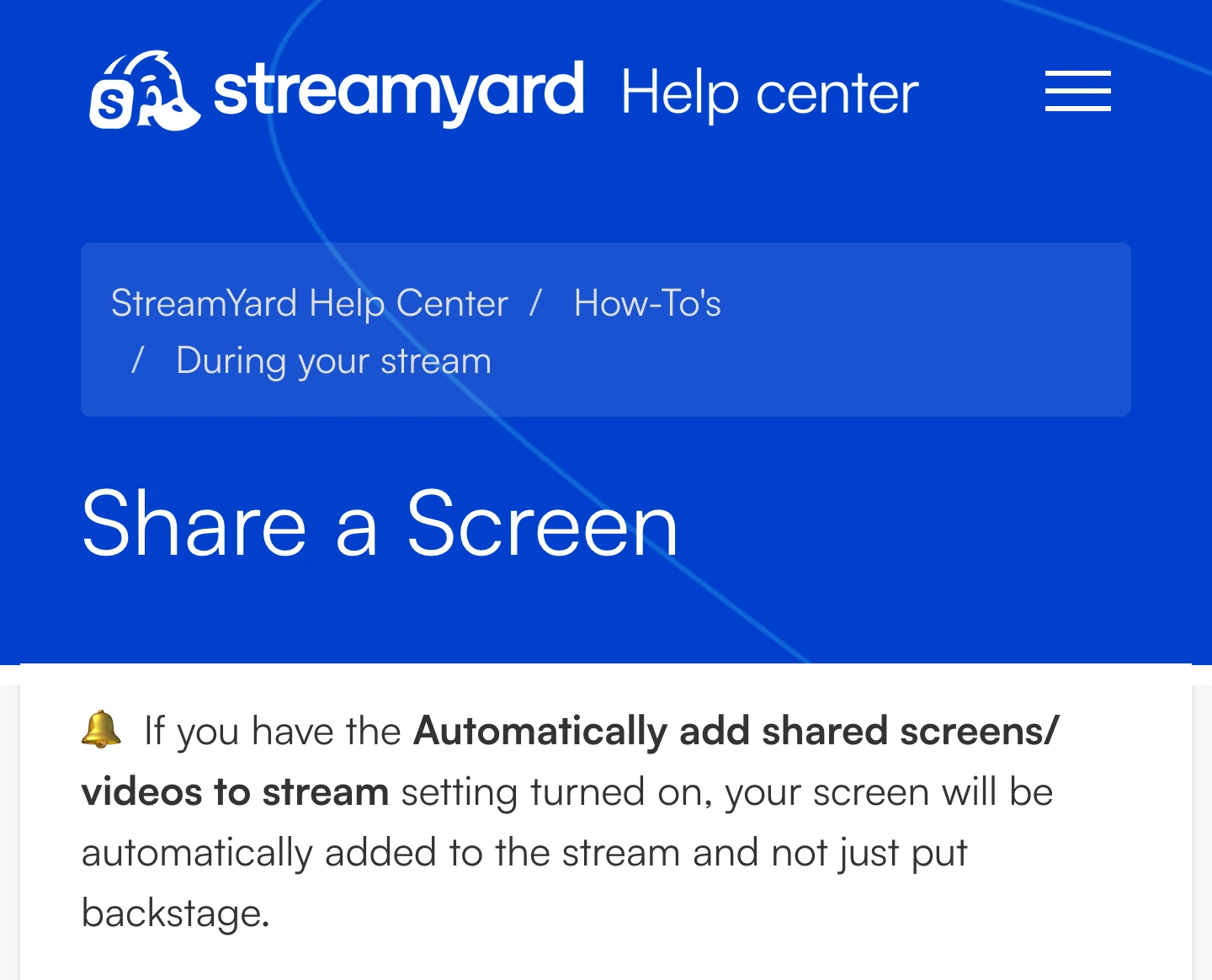
StreamYard Help Center, captured November 19, 2026. The original header and automatic-stage warning are joined excerpts; intervening content is omitted. Native 3× capture, without upscaling or rewritten text.
Guest sharing adds another role to the process. StreamYard's guest screen-sharing guide describes the host adding a guest's shared source to the stage. Agree on who performs that step before the session. The guest should have safe material ready before selecting it, and the host should confirm the intended source before making it visible.
Use a simple verbal handoff: “The demo page is ready,” followed by the host confirming what appears on stage. This is a suggested rehearsal convention, not a StreamYard privacy feature. If the source contains something unexpected, remove it from the stage before fixing the content.
Keep page changes and stage changes distinct
Once a source is on stage, changes inside that source can become audience-visible. Moving from a public web page to an account page in the shared tab is still a change to the source you selected. The same applies to opening another document inside the shared application window.
For a multi-step demo, write down the transitions in advance: opening the example, moving to the result, returning to the explanation. Check the actual stage after each transition. If a transition requires private preparation, remove the source from the stage and confirm its absence before doing that preparation.
When only one tab is needed, the guide to sharing without exposing other tabs explains the narrower browser boundary. Avoid expanding to the whole display merely because switching sources feels inconvenient.
Use ScreenK9 for a demo that moves between apps
A native tab or window share is the simplest answer for a fixed source. ScreenK9 helps when you need to move between several approved work apps while unrelated apps remain open on the Mac.
Create an Allow only profile with the applications needed for the demonstration, then open ScreenK9 — Audience View. Inspect that filtered window first. In StreamYard's application-window picker, choose ScreenK9 — Audience View as the shared source. The multi-app sharing guide explains this setup in more detail.
The two controls serve different purposes: ScreenK9 determines which approved app content enters its output window, while StreamYard determines whether that window is on stage. Check both during the rehearsal. This is an ordinary window-sharing workflow, not a special StreamYard integration.
For ordinary applications, ScreenK9 filters at app level. Approving an app does not selectively hide a private window belonging to the same app. Close or replace sensitive content in approved apps before the session. ScreenK9 does not detect passwords automatically, and any redaction regions must be configured by you. Sharing the physical display directly bypasses the filtered output.
Test sound separately from the picture
On Mac, StreamYard documents screen-share audio through a Chrome tab with audio sharing enabled. Do not assume an application-window source carries the computer's sound. For a prepared video, StreamYard recommends its video-sharing feature rather than screen-sharing playback.
ScreenK9 does not capture, mix or route audio. Selecting Audience View changes the visual source; it does not supply audio from the apps visible inside it. Choose the microphone or supported media-sharing route in StreamYard and verify the resulting sound independently.
Finish with a short test recording. Introduce the demo, put the intended source on stage, make the planned transitions, then remove it. Play the recording back and check readable text, the first and last visible frames, and sound. Keep that same source selection for the real session, and repeat the relevant check whenever you change it.
Sources checked
- StreamYard: Share a Screen
- StreamYard: Can Guests Share Their Screen?
- StreamYard: Sharing Long-Form Videos
- Apple: Control screen and system audio recording access
Documentation and ScreenK9 implementation checked November 19, 2026.