
Create a profile for the browsing context you need
Safari profiles are available in Safari 17 and later. In Safari → Settings → Profiles, choose Start Using Profiles for the first setup. For another profile, use the add button below the profile list.
Choose a recognizable name, icon, and color, then select a Favorites folder and create the profile. Apple’s Safari User Guide explains these controls and the per-profile extension choices. Your existing browsing becomes the default Personal profile when you first start using the feature.
A plain name such as “Work” makes the context easier to identify during a busy day. A presentation-specific context can also be useful if you regularly demonstrate the same public material. Keep the setup small enough that you can tell which window you are using without searching through several nearly identical names.
For the simplest one-window presentation, this native organization may be all you need. Open the intended sites in the intended profile and share that prepared window through your meeting app. Configure a broader capture workflow only if the presentation actually requires one.
Switch profiles by opening the right window
Use the File menu’s New [Profile] Window command to open another browsing context. Safari’s profile button also offers profile-window actions. The visible name, symbol, and color help identify the current context.
The similarly named Switch to [Profile] Window option has a condition: Apple says it is available only while the window shows the start page or an empty page, before you visit another page. If it disappears after browsing, opening a new profile window is the documented alternative.
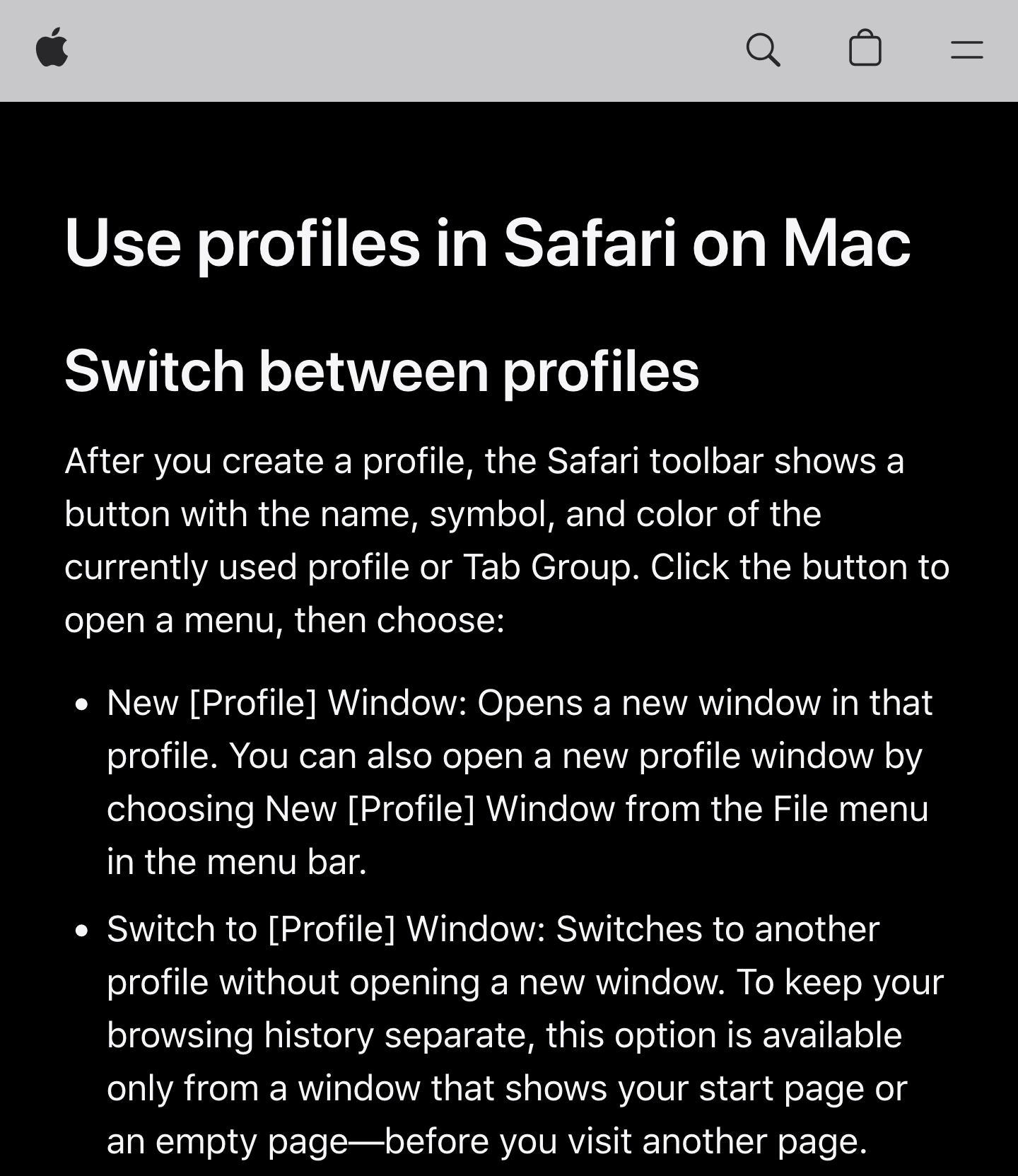
Apple Support, captured November 12, 2026. The Apple header, article title, and switching instructions are preserved in source order; intervening setup material and illustrative screenshots are omitted.
This distinction is helpful during a demonstration. Decide which context should open a link before sharing, rather than attempting to convert an already busy window midway through the call. Stop sharing if you need to reorganize windows or find a different account.
Understand what profiles separate—and what they share
Apple’s profile behavior reference distinguishes browsing data from shared Safari information. A different color in the toolbar is a context cue; it is not a separate macOS user account.
| Item | Profile behavior | Practical preparation |
|---|---|---|
| History and website cookies | Separate | Sign into the intended account in this profile |
| Tab Groups | Separate | Open only the group needed for the walkthrough |
| Favorites bar | Follows the chosen Favorites folder | Choose a suitable folder and inspect its labels |
| Bookmarks menu and sidebar | Bookmarks remain accessible across profiles | Check them before opening either on a call |
| Saved passwords and AutoFill | Shared information | Verify the account before submitting a sign-in |
| Extensions | Available across profiles, enabled separately | Review which ones this profile needs |
The Favorites distinction is easy to miss. Choosing a different Favorites folder changes that profile’s Favorites bar. It does not create an inaccessible bookmark vault. A personal bookmark can still be reachable through the shared bookmark interfaces.
Similarly, a fresh website session is useful for keeping two logins apart, but shared password suggestions still deserve attention. Check the account name on the actual destination page before presenting it. Do not infer the account solely from the profile’s name.
If your immediate concern is a page’s reading layout rather than its browsing context, use the separate Safari Reader guide. Creating profiles and simplifying an article solve different problems.
Prepare a profile for a client call
Open the profile window before the call and visit each page you expect to show. Complete sign-in and check the visible account, workspace, and example data. A work account can still contain information that this particular audience should not see.
Review the starting tab and the likely next tab. Look at the Favorites bar, sidebar state, download indicators, and any page-specific notifications. Use prepared examples instead of live personal or client records whenever the demonstration does not need real data.
Keep private prompts in another place: paper, a second device, or an application outside the selected source. A separate Safari profile is useful organization, but keeping private prompts in another Safari window still leaves a window you could select accidentally.
For one browser window, choose your meeting’s native window-sharing option where available and inspect the audience picture. Do not substitute an entire-display share merely because the window has a “Work” label. The selected capture source, not the label, determines what participants receive.
A brief rehearsal can catch the likely mistakes:
- Start in the prepared profile and confirm the intended website account.
- Open the next planned link and check which window receives it.
- Return to the opening tab without searching through unrelated windows.
- Inspect the meeting preview or a short recording.
- Stop sharing before opening anything outside the prepared sequence.
These are proposed checks for your own setup, not a claim that all meeting applications handle Safari windows identically. For a recording focused on a single source, follow the single-window recording guide.
Use ScreenK9 for the remaining multi-app task
ScreenK9 becomes relevant when the session needs Safari plus another application while private notes or messages remain open elsewhere. Choose the apps needed for the demonstration, exclude the private app, and inspect ScreenK9 — Audience View before sharing that named window.
ScreenK9’s ordinary application rules apply to Safari. It does not offer Safari-profile filtering or independently allow one ordinary Safari window while hiding another. Allowing Safari is an application-level choice. Close unrelated Safari windows and move private material to another excluded app before using this workflow.
The multi-app sharing guide explains the separate audience window. If you need to compare browser capabilities, the Chrome profile filtering guide describes a Chrome-specific companion feature; do not assume it also exists for Safari.
Sharing the physical display directly bypasses ScreenK9’s filtered output. ScreenK9 does not intercept meeting traffic, inspect the words on your websites, or automatically detect secrets. Manual redaction regions cover chosen areas; scrolling or changing pages can move sensitive content outside those areas.
For an app that should stay entirely outside the audience feed, use the private messaging workflow. For an allowed browser, prepare its visible content first. Before the real share, check the profile, website account, selected capture source, and next click as four separate items.
Sources checked
Documentation and ScreenK9 product boundaries reviewed November 12, 2026.