
Start with the built-in command
You do not need a keystroke-display extension for this task. Open a harmless sample file, bring up the Command Palette, and search for Toggle Screencast Mode. Microsoft’s original feature announcement identifies the command and its demonstration purpose.
Press a familiar shortcut and click inside the sample editor. Look for the keyboard label and click indicator before starting a call or recording. Screencast Mode helps explain input; it does not start a recording or choose a meeting’s capture source.
For a lesson entirely inside one VS Code window, share that window using the meeting app’s native selector. Keep the sample project small enough that you can find everything without searching unrelated work. If you are recording, begin with the single-window recording workflow.
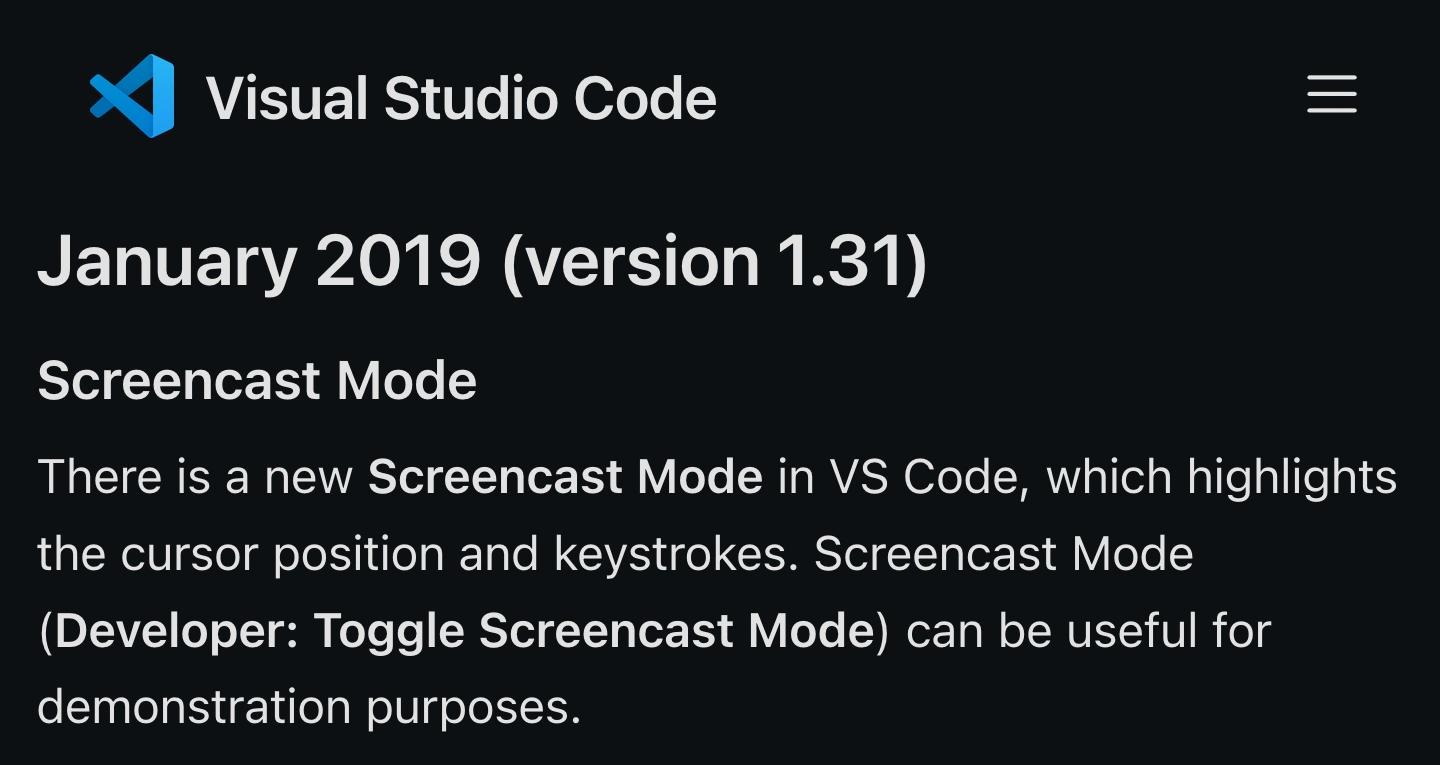
Visual Studio Code website, captured November 10, 2026. Header and feature section from the January 2019 announcement are shown in source order with intervening content omitted. Current settings were checked separately in Microsoft’s implementation.
Decide what the audience needs to see
A shortcut tutorial needs different feedback from a narrated code review. Choose the smallest useful amount of overlay information before you invite viewers.
| Teaching goal | Suggested overlay choice | Rehearsal question |
|---|---|---|
| Teach keyboard shortcuts | Shortcut keys and command names | Can viewers connect the label to the action? |
| Explain mouse navigation | Visible click indicator | Does it cover the control you are pointing at? |
| Discuss code already on screen | Little or no keyboard overlay | Does the label distract from the line being discussed? |
These are presentation choices, not security settings. An overlay that is helpful for a beginner can obscure an important line during a dense walkthrough. Ask a test viewer which information they actually used instead of adding every available indicator.
Use the current keyboard options
Open Preferences: Open Settings (UI) from the Command Palette and search for screencast. VS Code’s settings guide explains the Settings editor and the separate user and workspace scopes. Check which scope you are changing, especially in a project shared with colleagues.
Microsoft’s current Screencast Mode implementation defines screencastMode.keyboardOptions. Its choices include raw keys, recognized shortcuts, command names, command group names, and single editor cursor movements.
For a lesson focused on shortcuts, a useful starting point is:
"screencastMode.keyboardOptions": {
  "showKeys": false,
  "showKeybindings": true,
  "showCommands": true,
  "showCommandGroups": false,
  "showSingleEditorCursorMoves": false
}
Add this property inside an existing settings object; do not replace unrelated settings. The proposal suppresses raw-key labels while retaining shortcut explanations. Rehearse your exact commands because a recognized action and ordinary typing are different inputs.
Older instructions may mention screencastMode.onlyKeyboardShortcuts. Check the current Settings editor instead of copying an old preference without verifying that your installed version recognizes it. The current implementation also exposes overlay font size, vertical offset, timeout, and click-indicator appearance.
Test with harmless text before typing anything private
A keyboard overlay is another visible surface. Avoid entering a real password, token, customer identifier, or private search during a public demonstration. Turning off raw-key labels does not remove text already visible in a file, terminal, suggestion list, or command result.
Use this small rehearsal with fabricated material:
- Type
demo-onlyin an unsaved sample document. Check whether ordinary letters appear in the overlay. - Run one shortcut you intend to teach. Confirm that its label is useful and readable.
- Move the cursor with arrow keys. Check whether the resulting feedback is distracting.
- Open the prepared terminal or output panel. Review its visible history before running a sample command.
- Toggle Screencast Mode off and confirm that its labels disappear.
This is a proposed check you can repeat on your installation, not a claim that every extension or input field has been tested. Use sample credentials even if your preferred overlay configuration appears quiet.
If your demonstration includes Terminal outside VS Code, prepare its contents separately using the Mac Terminal cleanup guide. Clearing an overlay and clearing an application's visible history solve different problems.
Fix readability before adding more effects
Make a short recording at the same window size you intend to share. Play it back in a smaller player, closer to what a meeting participant will see. Check both the source code and the keyboard label; enlarging one can cover the other.
Choose an overlay position that leaves the active lines visible. Leave enough time after a shortcut for viewers to see the result. If a label disappears before you can explain it, adjust its timeout or slow the sequence rather than rushing through more actions.
Screencast Mode is distinct from Zen Mode. The VS Code presentation guide covers reducing editor chrome and preparing the workspace. Use that layout work when the sidebar or panels compete with your lesson; use Screencast Mode when the audience needs to understand your input.
Add ScreenK9 for an editor-to-browser demonstration
Native single-window sharing is straightforward for one prepared editor window. A different need arises when you must move between VS Code, a browser, and another prepared application while a private reference app stays open.
In that case, allow the required applications in ScreenK9, exclude the private reference app, inspect the output, and share ScreenK9 — Audience View in your meeting or recorder. The multi-app sharing guide explains the setup. Sharing the physical display directly bypasses that output.
ScreenK9’s ordinary-app rules apply to VS Code as an application. They cannot select one VS Code window while filtering another. A VS Code profile or a separate project is not a ScreenK9 privacy boundary. Keep private editor windows out of the prepared session, or use native single-window capture when that is the boundary you need.
ScreenK9 does not detect secrets in typed text and does not automatically suppress a keystroke overlay. Manual redaction regions cover chosen areas; they do not follow code, recognize passwords, or track a moving label. Before the real session, test one editor action, one browser transition, and the return to the editor from the audience’s view.
Sources checked
- Microsoft: original Screencast Mode announcement
- Microsoft: current Screencast Mode source
- VS Code: settings
- VS Code: keyboard shortcuts
Instructions and product boundaries reviewed November 10, 2026.