
Start with Preview’s built-in slideshow
You do not need to convert a finished PDF into PowerPoint just to show its pages. Apple documents a slideshow for a single PDF in its Preview slideshow guide.
Open the audience-ready copy in Preview, choose View → Slideshow, and use the on-screen controls to advance, return to an earlier page, or end the presentation. Practise these three actions before starting the call. The slideshow is a way to display the existing document; it does not prepare or approve its content.
Start with the menu command if you are following an unfamiliar tutorial. It gives you a visible confirmation that you selected Slideshow, rather than another viewing mode or a Finder preview. The older MacMost video above demonstrates the same entry point, while the current Apple page is the source for these instructions.
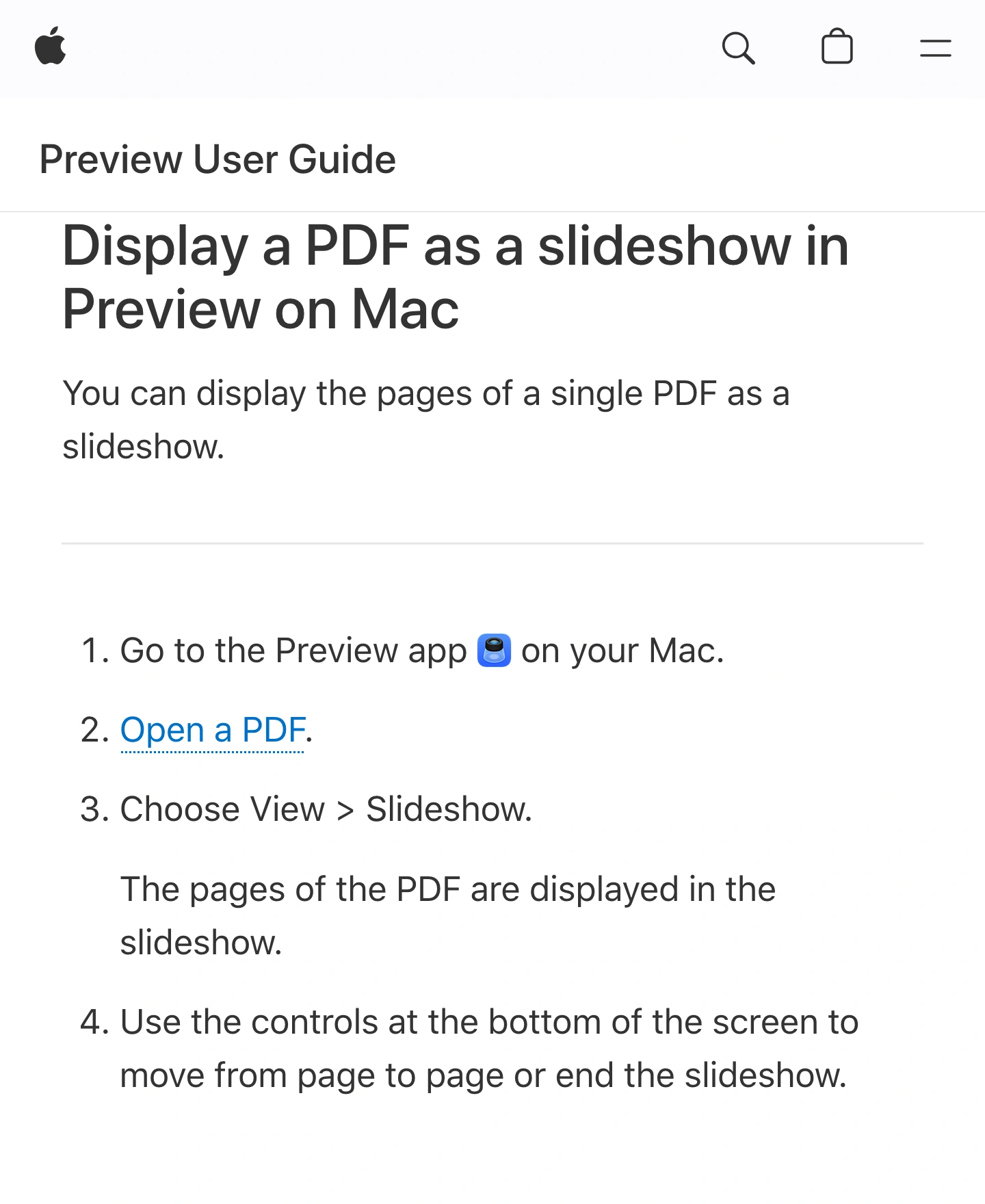
Apple Support, captured November 11, 2026. The Apple header, guide name, article title, and instructions are preserved in source order; version/search controls and the footer are omitted.
Choose a slideshow or a normal reading window
A landscape PDF exported from a slide deck often suits a page-by-page presentation. A long portrait report may be easier to explain in a normal Preview window, where you can enlarge the relevant passage.
| Material you need to show | Start with | Check in the audience picture |
|---|---|---|
| A finished PDF slide deck | View → Slideshow | Page changes and the ending state |
| A dense report paragraph | A normal Preview window | Text size and the next scroll |
| A comparison across pages | Preview’s page-layout choices | Whether both pages remain readable |
| PDF plus another application | A rehearsed multi-app setup | Every transition and allowed app |
Apple’s PDF viewing guide describes single-page, two-page, and continuous-scroll views, as well as the thumbnail sidebar and zoom controls. Choose the layout that makes the point visible instead of trying to fit the largest amount of material on screen.
A practical test is to read the smallest label you intend to discuss from a short test recording or another participant’s view. If it is difficult, enlarge the passage or show fewer items at once. Making your own monitor fill with a page does not establish that a viewer’s smaller meeting tile will be legible.
Prepare the exact PDF you will open
Use a clearly named presentation copy and open that copy before sharing. Check its first page, last page, page order, and any appendix you might reach during questions. A file that begins with public slides can still contain internal material at the end.
Also inspect annotations, highlights, names, and any text you intend to skip verbally. Slideshow mode is not redaction. If a page includes information that must not be shown, prepare a suitable copy before the call. The separate PDF redaction guide covers that content-removal task.
Keep a short page map beside your outline: opening page, main example, reference page, and ending page. This is especially useful when the conversation is likely to jump around. It avoids searching an unprepared folder or opening another version while participants are watching.
Do not rely on a page being “unlikely to come up.” Either make it appropriate for the audience or keep it outside the presentation copy. The point of preparation is to make ordinary navigation safe, including one extra page advance.
Check what the meeting actually captures
For a session about one PDF, start with the meeting app’s native window-sharing option where available. Select the prepared Preview window and inspect the resulting audience picture.
Test entering and leaving Slideshow with your actual conferencing app and macOS version. Do not assume that a selected reading window and a later presentation state will be captured identically. If the audience picture freezes, shows the wrong window, or becomes blank, stop sharing and reselect the intended source.
The useful check is the entire sequence, not only its opening frame:
- Start on the intended first page.
- Enter Slideshow and move forward twice.
- Return to the previous page.
- End the slideshow and inspect what becomes visible.
- Stop the share before opening an unrelated document.
This is a proposed rehearsal, not a report of a cross-platform capture test. Keep a normal Preview window ready as a fallback if changing presentation modes complicates your meeting setup. For a recording, follow the single-window capture workflow and review playback before recording the full explanation.
Keep prompts separate from the shared document
If you need private speaking prompts, put them somewhere outside the selected source: paper, a second device, or a different application that is not being shared. Writing prompts into the PDF creates content you must remember to avoid showing.
When the session needs a timer, private notes, animations, or a more elaborate presenter workflow, a real slide deck may be a better starting point. Do not assume a PDF slideshow has all the controls of a slide editor. For an existing deck, the speaker-notes sharing guide explains how to separate the presentation from the prompts.
If you prefer Adobe’s viewer, use the Acrobat Read and Full Screen guide. The controls differ; this article is specifically about Preview’s PDF slideshow.
Use ScreenK9 when the explanation moves across apps
Native sharing of the prepared Preview window is enough for a one-document presentation. ScreenK9 becomes useful when you also need a browser or another application while keeping a separate private notes app outside the audience feed.
Choose the apps needed for the demonstration, exclude the private app, and inspect ScreenK9 — Audience View. Share that named window in the meeting or recorder. Directly sharing the physical display bypasses this filtered output. The multi-app walkthrough covers the setup.
Preview follows ScreenK9’s ordinary application rules. Allowing Preview is not a rule that approves one PDF window while independently hiding another Preview window. Close unrelated Preview documents, keep prompts in another excluded app, and verify the output when you enter or leave Slideshow.
ScreenK9 does not inspect the PDF’s words, run OCR, or automatically find secrets. Manual redaction regions cover chosen areas; they do not follow a sentence when you change pages or scroll. Prepare the PDF itself for the audience before configuring the feed.
Finish rehearsal on the same page and in the same viewing mode that will open the real presentation. Check the next page, the return path, and the state after ending Slideshow. Then stop sharing before searching for anything you have not prepared.
Sources checked
- Apple: display a PDF as a slideshow
- Apple: view PDFs and images in Preview
- MacMost: PDF features in Preview, with video transcript
Documentation and ScreenK9’s product boundaries reviewed November 11, 2026.